> ## Documentation Index
> Fetch the complete documentation index at: https://docs.scoutos.com/llms.txt
> Use this file to discover all available pages before exploring further.
# Schedule Agent Runs: Cron, Triggers, and Automation
> Set up recurring Scout agent runs using built-in scheduling. Configure daily, weekly, or cron schedules from the Triggers tab — no workflow required.
Scheduling lets your agents work on autopilot — running at defined intervals, completing their tasks, and delivering results without anyone having to trigger them manually. You configure a schedule directly on the agent from the **Triggers** tab, no workflow required. Once it's set, your agent runs exactly when you need it, every time.
Common uses include morning briefings delivered before the workday starts, weekly competitive intelligence reports, nightly CRM cleanup jobs, and hourly system health checks. If a task is worth doing on a recurring cadence, scheduling makes it automatic.
## Setting Up a Schedule
You configure the schedule from the trigger panel on the right side of the agent editor. The screenshot below shows a custom schedule being set up — choose a frequency, set the time, and pick the days the agent should run.
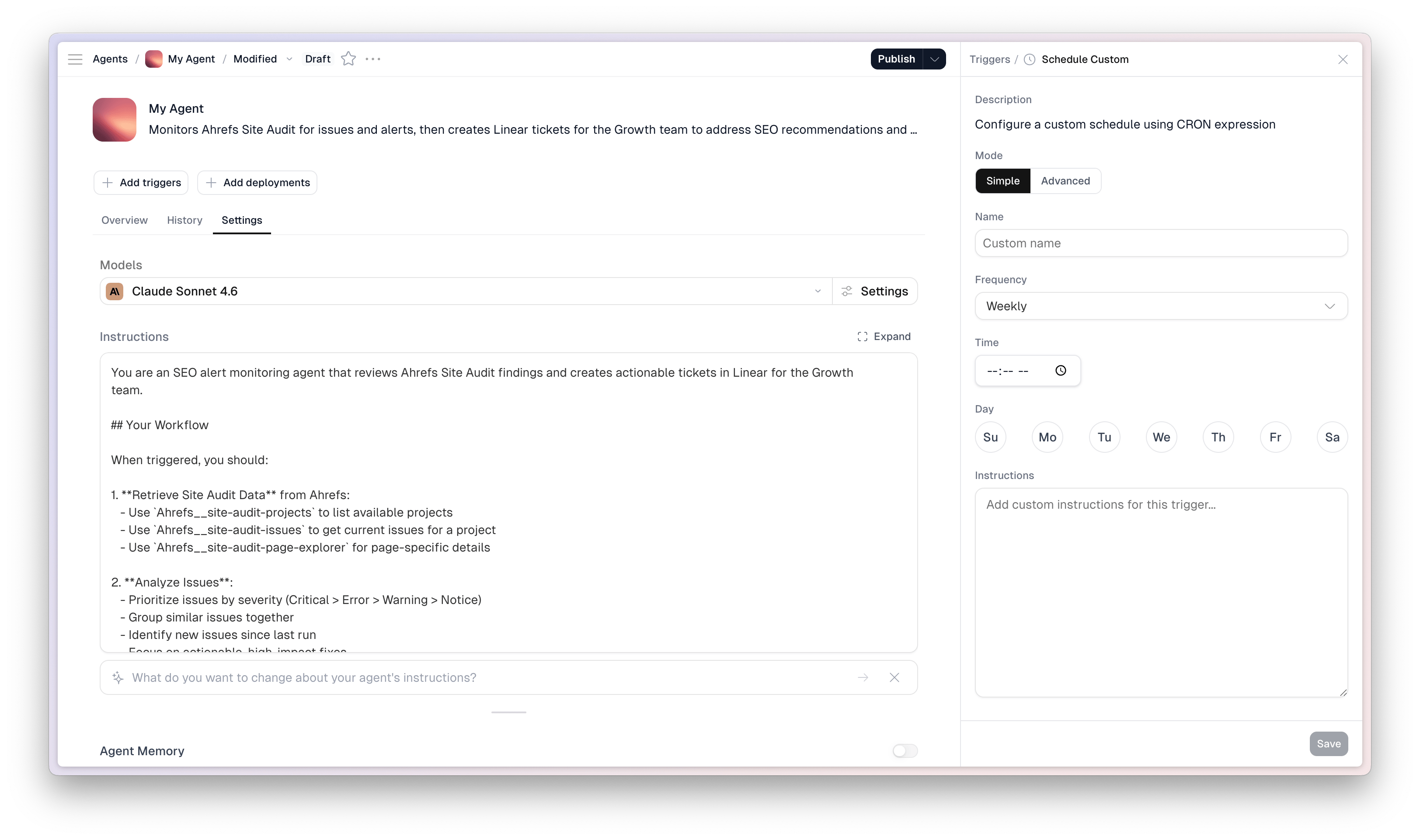 Open your agent in Scout Studio and click the **Add Trigger** button. In the trigger panel, select **Schedule** as the trigger type.
Select from Daily, Weekly, or Custom (cron expression). See the options below for details on each type and example cron patterns.
Set the time, timezone, and any input values the agent needs to run. Inputs are passed to the agent on every scheduled execution — if your agent doesn't need dynamic inputs, leave this section empty.
```json theme={null}
{
"report_type": "weekly_summary",
"date_range": "last_7_days",
"recipient": "team@yourcompany.com"
}
```
Save your settings and enable the schedule. Your agent will begin running automatically at the times you specified. Check the **Logs** tab after the first run to confirm everything is working.
***
## Schedule Types
### Daily
Run your agent once per day at a specific time. Select your timezone so the schedule reflects your team's working hours rather than UTC.
Best for: daily summaries, morning prep briefings, overnight data processing.
### Weekly
Run your agent on specific days of the week at a set time. You can select one or multiple days — for example, Monday and Thursday, or just Friday for an end-of-week wrap-up.
Best for: weekly reports, periodic reviews, recurring team briefings.
### Custom Cron
Use cron syntax for anything more advanced — every four hours, twice a day, the first Monday of the month, and so on.
| Cron expression | Meaning |
| ---------------- | ----------------------------- |
| `0 9 * * *` | Every day at 9 a.m. |
| `0 9 * * 1` | Every Monday at 9 a.m. |
| `0 9 * * 1-5` | Weekdays at 9 a.m. |
| `0 */4 * * *` | Every four hours |
| `0 */2 * * *` | Every two hours |
| `0 0 * * 1` | Every Monday at midnight |
| `0 0 1 * *` | First day of every month |
| `0 8,17 * * 1-5` | Weekdays at 8 a.m. and 5 p.m. |
Use [crontab.guru](https://crontab.guru) to validate cron expressions before saving them. It shows a plain-English description of what your expression will do.
***
## Example Scheduled Agents
### Morning Sales Briefing
**Schedule:** `0 8 * * 1-5` — weekdays at 8 a.m.
**Instructions:**
```text theme={null}
Prepare a concise morning briefing for the sales team that includes:
- Today's calendar events from Google Calendar
- New leads added in the last 24 hours from Salesforce
- Any mentions of our company in the news overnight
- A summary of open support tickets flagged as urgent
Format as a scannable list. Keep the whole brief under 300 words.
```
**Tools:** Google Calendar, Salesforce, Web Search, Help Desk
**Output:** Post to #sales-team Slack channel
***
### Weekly Competitor Monitor
**Schedule:** `0 7 * * 1` — every Monday at 7 a.m.
**Instructions:**
```text theme={null}
Research our top five competitors and identify:
- Any pricing changes announced in the last seven days
- New product announcements or feature releases
- Press coverage, news mentions, or blog posts
- Job postings that might indicate a strategic shift
Write a summary report with links to sources. Flag anything that
requires an immediate response from our team.
```
**Tools:** Web Search, Exa
**Output:** Save to Drive as `/reports/competitors/YYYY-MM-DD.md` and email to leadership
***
### Nightly CRM Hygiene
**Schedule:** `0 2 * * *` — every night at 2 a.m.
**Instructions:**
```text theme={null}
Review contact and account records in Salesforce and:
- Flag duplicates for manual review
- Mark contacts with no activity in the last 90 days as stale
- Update any company data that appears outdated
- Generate a summary of records reviewed and changes made
If Salesforce is unavailable, retry once after 15 minutes. Log the
outcome either way.
```
**Tools:** Salesforce
**Output:** Log results to the "CRM Hygiene" table in Scout
***
### Hourly System Check
**Schedule:** `0 * * * *` — every hour
**Instructions:**
```text theme={null}
Check the status of our key systems and report:
- API response times for our three main endpoints
- Database connection health
- Error rates logged in the past hour
Post to #ops-alerts only if a metric exceeds its threshold.
Do not post if everything is healthy.
```
**Tools:** Custom monitoring tools, Slack
**Output:** Post to #ops-alerts only when issues are detected
***
## Managing Schedules
### Edit a schedule
Open your agent, go to the **Triggers** tab, and update any field — timing, frequency, inputs, or timezone. Changes take effect immediately after you save.
### Pause a schedule
Toggle the schedule off in the **Triggers** tab to stop it temporarily. Your configuration is preserved so you can re-enable it any time.
### Delete a schedule
Remove the schedule entirely from the **Triggers** tab. The agent continues to work normally and can still be triggered manually or via other trigger types.
***
## Monitoring Scheduled Runs
Open the **Logs** tab on your agent to see a full history of scheduled executions. Each log entry includes:
* When the run started and finished
* The inputs passed to the agent
* Every tool call, in order
* The output or response delivered
* Success or failure status with error details if applicable
After setting up a new schedule, check the Logs tab for the first two or three runs to confirm the agent is producing the expected output. Small instruction adjustments early on save a lot of time later.
***
## Agent Scheduling vs. Workflow Scheduling
Both agents and workflows support scheduling, but they're designed for different scenarios.
**Use agent scheduling when:**
* The task requires judgment, adaptation, or handling of unexpected data
* You want to configure the schedule directly on the agent without building a workflow
* The agent should decide its own approach based on what it finds
**Use workflow scheduling when:**
* The task is deterministic — every step is known in advance
* You need precise control over the order of operations
* The same pipeline runs identically every time with no branching logic
For most recurring business tasks — reports, briefings, monitoring, cleanup — agent scheduling is the right choice. It's faster to set up and handles the variability that breaks rigid pipelines.
***
## Best Practices
**Test before you schedule.** Run your agent manually with the same inputs you plan to use in the scheduled trigger. Confirm the output looks right before automating.
**Start simple.** Begin with daily or weekly schedules. Increase frequency only when you've confirmed the agent handles repeated runs reliably.
**Set your timezone explicitly.** Always choose your team's timezone rather than relying on a UTC default. A schedule set to "9 a.m." should run at 9 a.m. where your team is.
**Write failure handling into your instructions.** Tell the agent what to do when a tool is unavailable: "If Salesforce returns an error, log the issue and continue with the remaining data sources."
**Account for rate limits.** If your agent calls APIs with rate limits, avoid scheduling it too frequently. Hourly is usually safe; every five minutes may trigger throttling on some services.
**Monitor early runs.** Check the Logs tab after each of the first few scheduled runs. Catching a misconfiguration on run two is much easier than diagnosing it after thirty runs.
***
## Common Questions
**Do I need a workflow to schedule an agent?**
No. Scheduling is built directly into the agent's Triggers tab. You don't need to create a workflow.
**Can I have multiple schedules for one agent?**
Yes. Add multiple triggers with different frequencies, times, and inputs — for example, a daily summary and a separate weekly deep-dive report.
**What happens if a scheduled run is still in progress when the next one starts?**
Scout queues the next run. If the previous run is still active, the new run waits or is skipped depending on your agent's configuration.
**Can I still trigger the agent manually if it's on a schedule?**
Yes. Schedules add automatic triggers — they don't prevent you from triggering the agent manually at any time.
**How do I know if a scheduled run failed?**
Open the **Logs** tab. Failed runs are marked with an error status and include details about what went wrong so you can diagnose and fix the issue.
Open your agent in Scout Studio and click the **Add Trigger** button. In the trigger panel, select **Schedule** as the trigger type.
Select from Daily, Weekly, or Custom (cron expression). See the options below for details on each type and example cron patterns.
Set the time, timezone, and any input values the agent needs to run. Inputs are passed to the agent on every scheduled execution — if your agent doesn't need dynamic inputs, leave this section empty.
```json theme={null}
{
"report_type": "weekly_summary",
"date_range": "last_7_days",
"recipient": "team@yourcompany.com"
}
```
Save your settings and enable the schedule. Your agent will begin running automatically at the times you specified. Check the **Logs** tab after the first run to confirm everything is working.
***
## Schedule Types
### Daily
Run your agent once per day at a specific time. Select your timezone so the schedule reflects your team's working hours rather than UTC.
Best for: daily summaries, morning prep briefings, overnight data processing.
### Weekly
Run your agent on specific days of the week at a set time. You can select one or multiple days — for example, Monday and Thursday, or just Friday for an end-of-week wrap-up.
Best for: weekly reports, periodic reviews, recurring team briefings.
### Custom Cron
Use cron syntax for anything more advanced — every four hours, twice a day, the first Monday of the month, and so on.
| Cron expression | Meaning |
| ---------------- | ----------------------------- |
| `0 9 * * *` | Every day at 9 a.m. |
| `0 9 * * 1` | Every Monday at 9 a.m. |
| `0 9 * * 1-5` | Weekdays at 9 a.m. |
| `0 */4 * * *` | Every four hours |
| `0 */2 * * *` | Every two hours |
| `0 0 * * 1` | Every Monday at midnight |
| `0 0 1 * *` | First day of every month |
| `0 8,17 * * 1-5` | Weekdays at 8 a.m. and 5 p.m. |
Use [crontab.guru](https://crontab.guru) to validate cron expressions before saving them. It shows a plain-English description of what your expression will do.
***
## Example Scheduled Agents
### Morning Sales Briefing
**Schedule:** `0 8 * * 1-5` — weekdays at 8 a.m.
**Instructions:**
```text theme={null}
Prepare a concise morning briefing for the sales team that includes:
- Today's calendar events from Google Calendar
- New leads added in the last 24 hours from Salesforce
- Any mentions of our company in the news overnight
- A summary of open support tickets flagged as urgent
Format as a scannable list. Keep the whole brief under 300 words.
```
**Tools:** Google Calendar, Salesforce, Web Search, Help Desk
**Output:** Post to #sales-team Slack channel
***
### Weekly Competitor Monitor
**Schedule:** `0 7 * * 1` — every Monday at 7 a.m.
**Instructions:**
```text theme={null}
Research our top five competitors and identify:
- Any pricing changes announced in the last seven days
- New product announcements or feature releases
- Press coverage, news mentions, or blog posts
- Job postings that might indicate a strategic shift
Write a summary report with links to sources. Flag anything that
requires an immediate response from our team.
```
**Tools:** Web Search, Exa
**Output:** Save to Drive as `/reports/competitors/YYYY-MM-DD.md` and email to leadership
***
### Nightly CRM Hygiene
**Schedule:** `0 2 * * *` — every night at 2 a.m.
**Instructions:**
```text theme={null}
Review contact and account records in Salesforce and:
- Flag duplicates for manual review
- Mark contacts with no activity in the last 90 days as stale
- Update any company data that appears outdated
- Generate a summary of records reviewed and changes made
If Salesforce is unavailable, retry once after 15 minutes. Log the
outcome either way.
```
**Tools:** Salesforce
**Output:** Log results to the "CRM Hygiene" table in Scout
***
### Hourly System Check
**Schedule:** `0 * * * *` — every hour
**Instructions:**
```text theme={null}
Check the status of our key systems and report:
- API response times for our three main endpoints
- Database connection health
- Error rates logged in the past hour
Post to #ops-alerts only if a metric exceeds its threshold.
Do not post if everything is healthy.
```
**Tools:** Custom monitoring tools, Slack
**Output:** Post to #ops-alerts only when issues are detected
***
## Managing Schedules
### Edit a schedule
Open your agent, go to the **Triggers** tab, and update any field — timing, frequency, inputs, or timezone. Changes take effect immediately after you save.
### Pause a schedule
Toggle the schedule off in the **Triggers** tab to stop it temporarily. Your configuration is preserved so you can re-enable it any time.
### Delete a schedule
Remove the schedule entirely from the **Triggers** tab. The agent continues to work normally and can still be triggered manually or via other trigger types.
***
## Monitoring Scheduled Runs
Open the **Logs** tab on your agent to see a full history of scheduled executions. Each log entry includes:
* When the run started and finished
* The inputs passed to the agent
* Every tool call, in order
* The output or response delivered
* Success or failure status with error details if applicable
After setting up a new schedule, check the Logs tab for the first two or three runs to confirm the agent is producing the expected output. Small instruction adjustments early on save a lot of time later.
***
## Agent Scheduling vs. Workflow Scheduling
Both agents and workflows support scheduling, but they're designed for different scenarios.
**Use agent scheduling when:**
* The task requires judgment, adaptation, or handling of unexpected data
* You want to configure the schedule directly on the agent without building a workflow
* The agent should decide its own approach based on what it finds
**Use workflow scheduling when:**
* The task is deterministic — every step is known in advance
* You need precise control over the order of operations
* The same pipeline runs identically every time with no branching logic
For most recurring business tasks — reports, briefings, monitoring, cleanup — agent scheduling is the right choice. It's faster to set up and handles the variability that breaks rigid pipelines.
***
## Best Practices
**Test before you schedule.** Run your agent manually with the same inputs you plan to use in the scheduled trigger. Confirm the output looks right before automating.
**Start simple.** Begin with daily or weekly schedules. Increase frequency only when you've confirmed the agent handles repeated runs reliably.
**Set your timezone explicitly.** Always choose your team's timezone rather than relying on a UTC default. A schedule set to "9 a.m." should run at 9 a.m. where your team is.
**Write failure handling into your instructions.** Tell the agent what to do when a tool is unavailable: "If Salesforce returns an error, log the issue and continue with the remaining data sources."
**Account for rate limits.** If your agent calls APIs with rate limits, avoid scheduling it too frequently. Hourly is usually safe; every five minutes may trigger throttling on some services.
**Monitor early runs.** Check the Logs tab after each of the first few scheduled runs. Catching a misconfiguration on run two is much easier than diagnosing it after thirty runs.
***
## Common Questions
**Do I need a workflow to schedule an agent?**
No. Scheduling is built directly into the agent's Triggers tab. You don't need to create a workflow.
**Can I have multiple schedules for one agent?**
Yes. Add multiple triggers with different frequencies, times, and inputs — for example, a daily summary and a separate weekly deep-dive report.
**What happens if a scheduled run is still in progress when the next one starts?**
Scout queues the next run. If the previous run is still active, the new run waits or is skipped depending on your agent's configuration.
**Can I still trigger the agent manually if it's on a schedule?**
Yes. Schedules add automatic triggers — they don't prevent you from triggering the agent manually at any time.
**How do I know if a scheduled run failed?**
Open the **Logs** tab. Failed runs are marked with an error status and include details about what went wrong so you can diagnose and fix the issue.