> ## Documentation Index
> Fetch the complete documentation index at: https://docs.scoutos.com/llms.txt
> Use this file to discover all available pages before exploring further.
# Search: Navigate Scout Studio with Cmd+K
> Use Search to jump to any part of Scout Studio instantly from anywhere in the app — search destinations, tab through sections, and navigate without leaving the keyboard.
Search lets you jump to any part of Scout Studio without taking your hands off the keyboard. Open it from anywhere in the app and go directly to Agents, Drive, Tables, Workflows, and more.
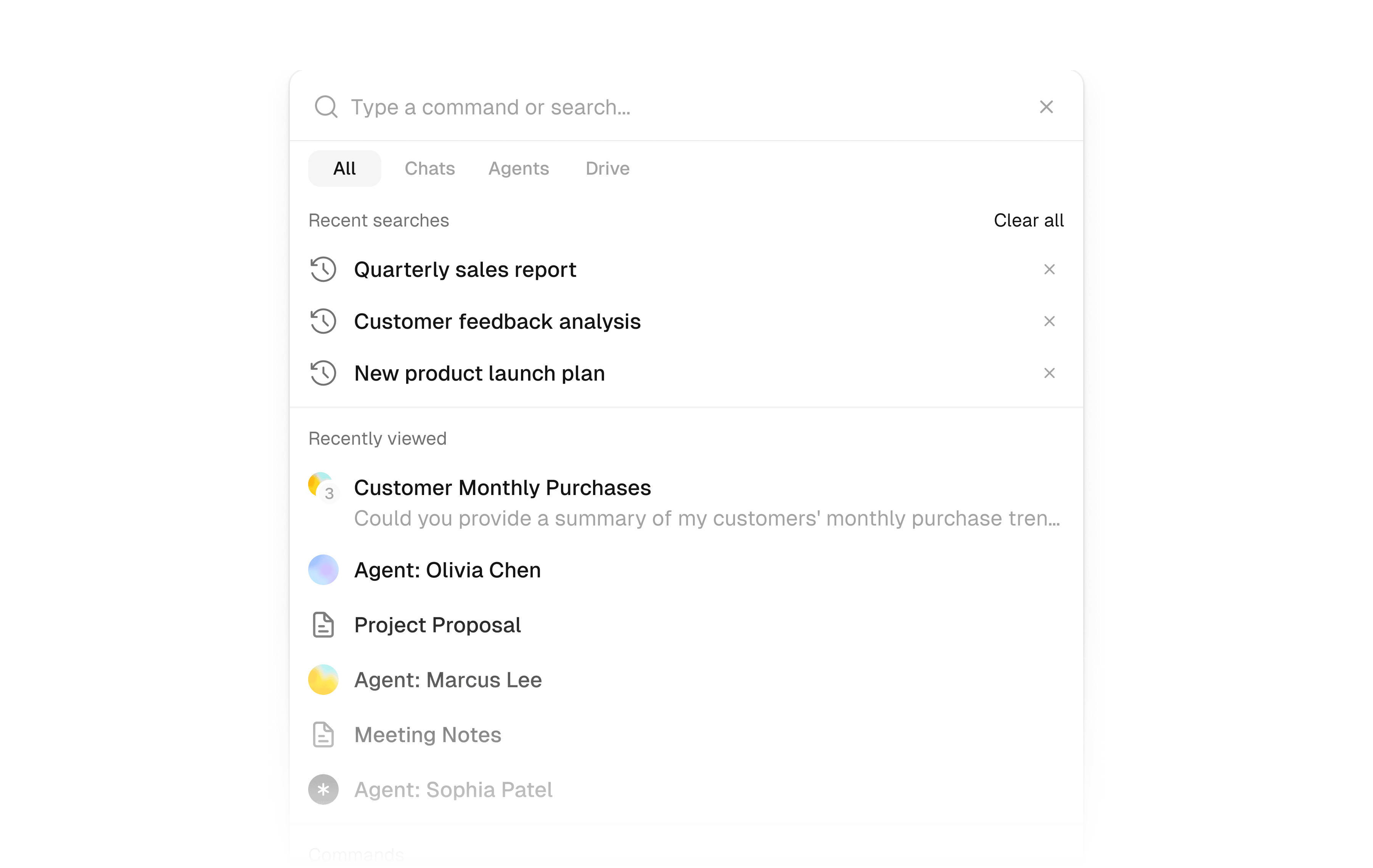 ## Opening Search
Press `Cmd+K` on Mac or `Ctrl+K` on Windows. Search opens as a modal overlay on top of whatever you were working on.
To close it, press `Escape` or click anywhere outside the modal.
## Navigating with Search
Once Search is open, you have two ways to get where you want to go.
### Type to search
Type any destination — an agent name, a section, a table, or a workflow — and matching results appear instantly, grouped by section.
## Opening Search
Press `Cmd+K` on Mac or `Ctrl+K` on Windows. Search opens as a modal overlay on top of whatever you were working on.
To close it, press `Escape` or click anywhere outside the modal.
## Navigating with Search
Once Search is open, you have two ways to get where you want to go.
### Type to search
Type any destination — an agent name, a section, a table, or a workflow — and matching results appear instantly, grouped by section.
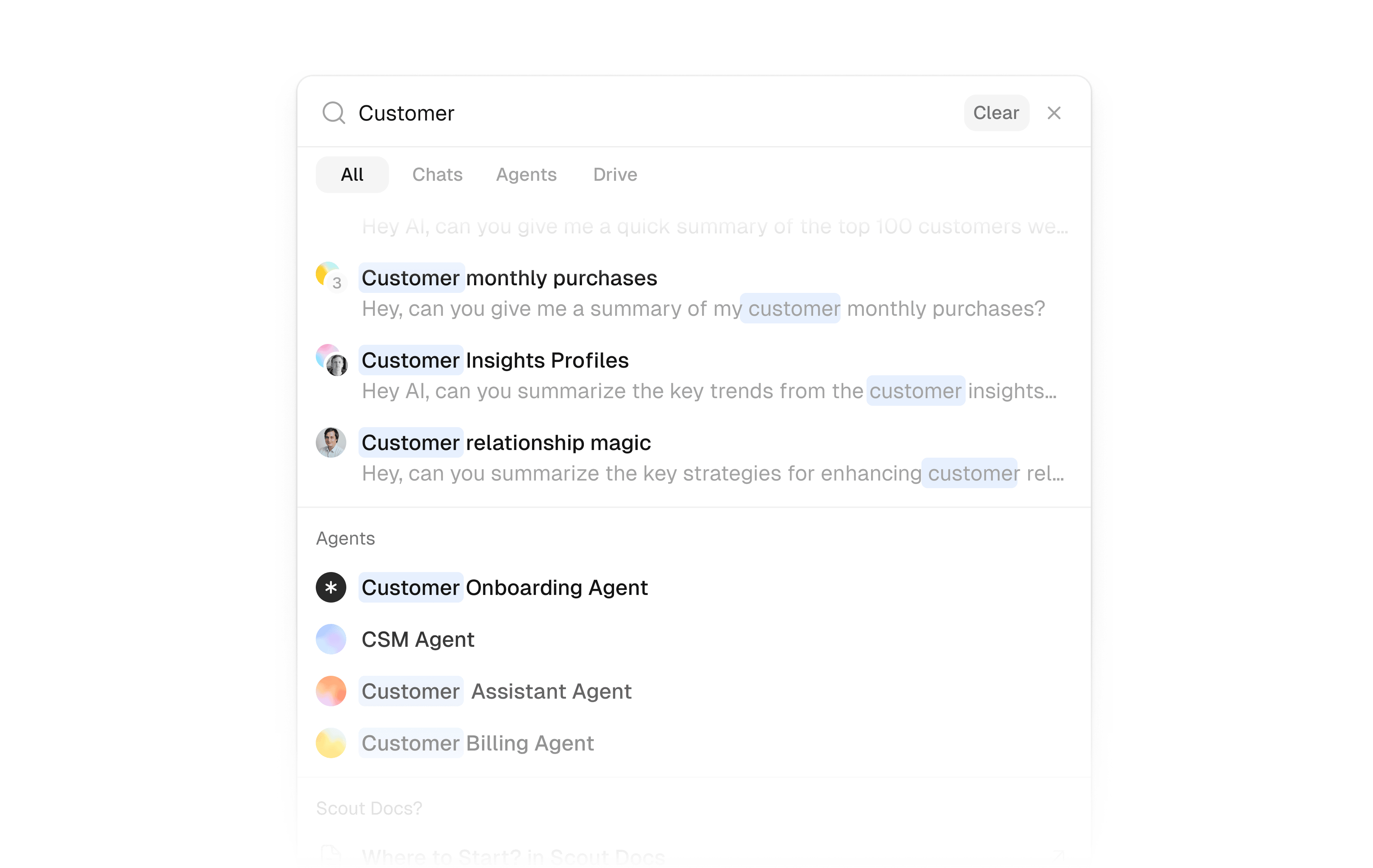 Press `Enter` to navigate to the top result, or use the arrow keys to highlight a different one before opening it.
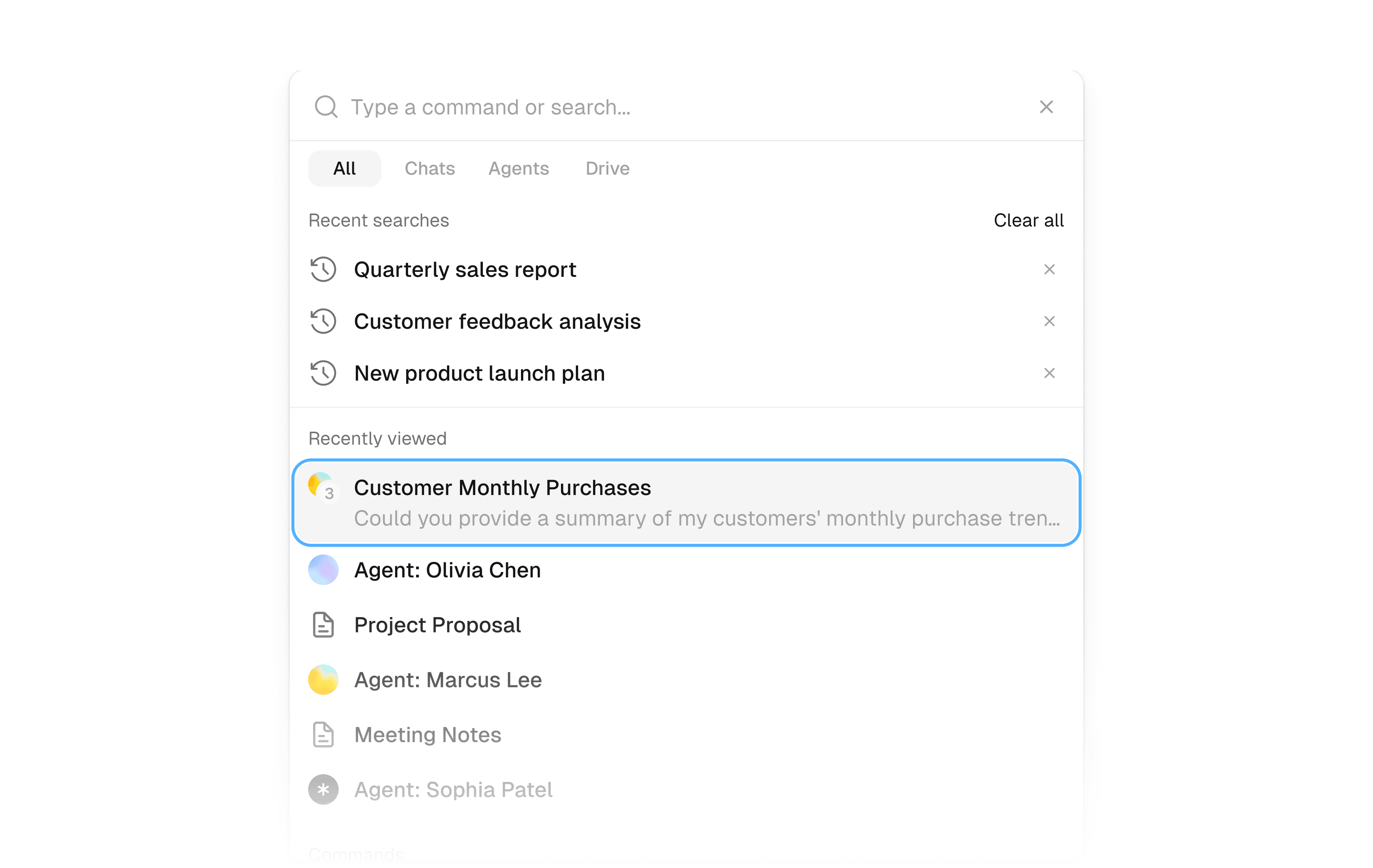 ### Tab through sections
Press `Tab` to cycle through Scout's main areas. Each tab stop shows a preview of that section's content — including recent agents, workflows, chat history, and more — so you can orient yourself before navigating.
### Tab through sections
Press `Tab` to cycle through Scout's main areas. Each tab stop shows a preview of that section's content — including recent agents, workflows, chat history, and more — so you can orient yourself before navigating.
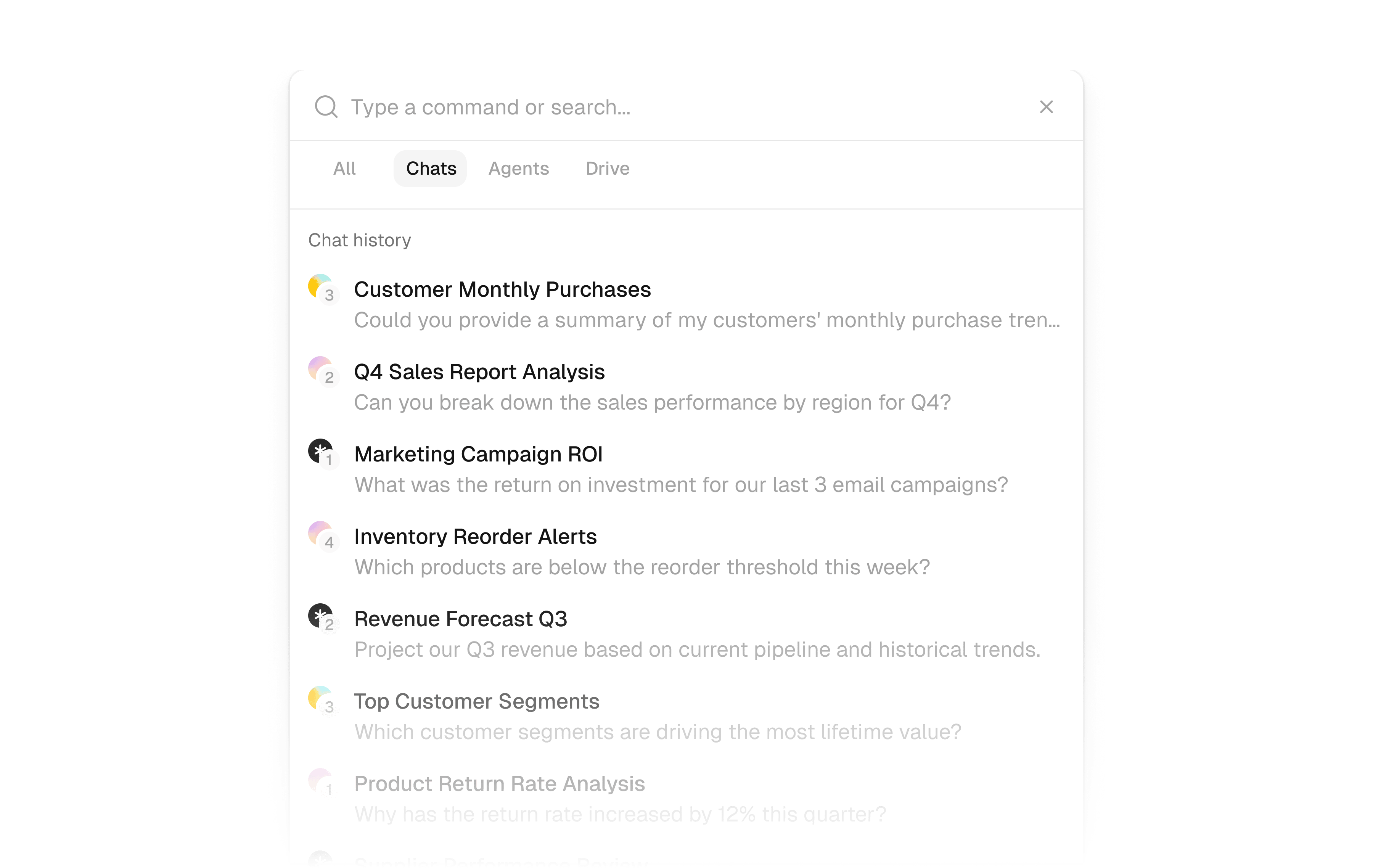 ## What you can reach
Search gives you quick access to every major area of Scout Studio:
| Destination | What you find there |
| ------------ | ------------------------------------------------ |
| Agents | Your org's agents — open, edit, or run any agent |
| Drive | Files and documents stored in Scout Drive |
| Tables | Collections and table views |
| Workflows | Workflow editor and run history |
| Chat History | Past conversations across agents |
| Settings | Org settings, API Keys, Model Management |
## Keyboard reference
| Key | Action |
| ------------------------- | -------------------------------- |
| `Cmd+K` / `Ctrl+K` | Open Search |
| Type to search | Filter destinations in real time |
| `Arrow Up` / `Arrow Down` | Move through results |
| `Enter` | Navigate to selected result |
| `Tab` | Cycle through main sections |
| `Escape` | Close Search |
## Tips
Search works from any screen in Scout Studio — you never need to navigate back to a home view first.
* Use it to switch between agents quickly during testing without losing your place.
* Section tab-through is useful when you know the area but not the exact item name.
## What's Next
Understand agents, instructions, collections, workflows, and the other building blocks of Scout.
Go deeper on building intelligent agents that adapt and take action.
## What you can reach
Search gives you quick access to every major area of Scout Studio:
| Destination | What you find there |
| ------------ | ------------------------------------------------ |
| Agents | Your org's agents — open, edit, or run any agent |
| Drive | Files and documents stored in Scout Drive |
| Tables | Collections and table views |
| Workflows | Workflow editor and run history |
| Chat History | Past conversations across agents |
| Settings | Org settings, API Keys, Model Management |
## Keyboard reference
| Key | Action |
| ------------------------- | -------------------------------- |
| `Cmd+K` / `Ctrl+K` | Open Search |
| Type to search | Filter destinations in real time |
| `Arrow Up` / `Arrow Down` | Move through results |
| `Enter` | Navigate to selected result |
| `Tab` | Cycle through main sections |
| `Escape` | Close Search |
## Tips
Search works from any screen in Scout Studio — you never need to navigate back to a home view first.
* Use it to switch between agents quickly during testing without losing your place.
* Section tab-through is useful when you know the area but not the exact item name.
## What's Next
Understand agents, instructions, collections, workflows, and the other building blocks of Scout.
Go deeper on building intelligent agents that adapt and take action.