> ## Documentation Index
> Fetch the complete documentation index at: https://docs.scoutos.com/llms.txt
> Use this file to discover all available pages before exploring further.
# Roles
> Understand Scout's system roles, create custom roles, and assign them to members from Settings.
Roles control what each person in your workspace can see and do. Scout includes four system roles. Owners can also create custom roles with a specific set of permissions.
## Open the Roles page
In Scout Studio, open the workspace switcher and choose **Settings**, then choose **Roles**.
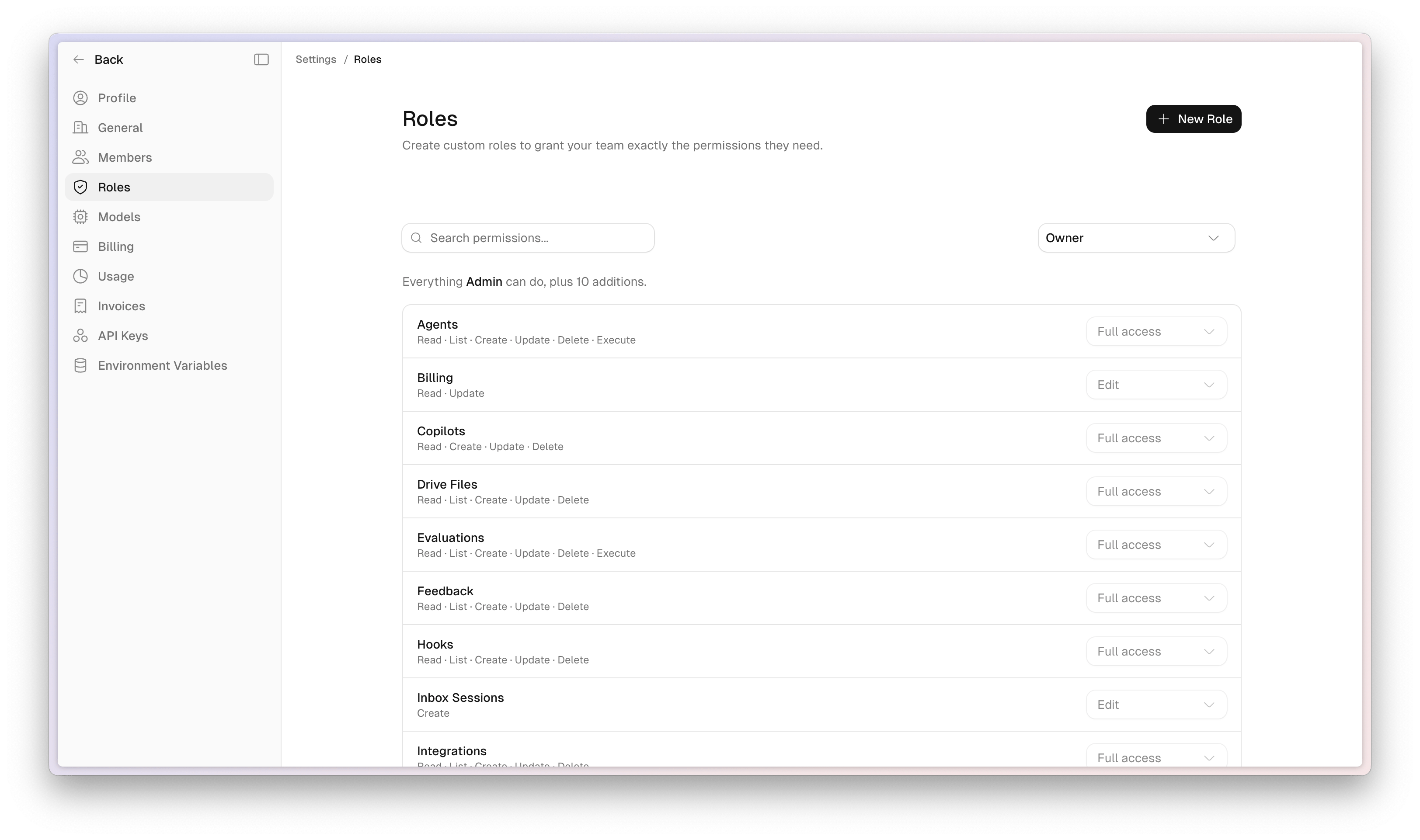 **Owners** can create, edit, and delete custom roles. **Admins** can open the same page and review every role, but cannot change them. If you don't see **Roles** in Settings, ask an Admin or Owner to review access for you.
Pick a role from the dropdown. System roles and custom roles appear in separate groups. Use **Search permissions...** to filter the list. Each row is a resource, with granted actions on the left and an access level on the right (**View**, **Edit**, **Full access**).
System roles include a short summary of how they build on the role below them. For **Owner**, that reads **Everything Admin can do, plus 10 additions.** You cannot edit those levels on a system role.
## System roles
You cannot edit or delete the four system roles. Each role includes everything the role below it can do, plus more.
| Role | Who it's for | What they can do |
| ---------- | ----------------------------------- | ------------------------------------------------------------------------------------------------------------------------------------------------------------------- |
| **Owner** | People who own the workspace | Full access, including billing, models, organization settings, members, and roles. Every workspace must keep at least one Owner. |
| **Admin** | People who administer the workspace | Manage members, API keys, environment variables, and org usage. View roles. Cannot change billing, models, organization settings, or custom roles. |
| **Editor** | People who build in Scout | Create and edit agents, workflows, databases, and Drive files. Cannot manage workspace settings or members. |
| **Member** | People who use existing work | View and run shared agents and workflows. View databases. View and download Drive files. Cannot create or edit those resources, and cannot open workspace settings. |
Assign **Member** to people who should run agents without changing them. Assign **Editor** to people who should author agents and workflows.
## Create a custom role
Only an Owner can create a custom role. Custom roles do not inherit from a system role.
**Owners** can create, edit, and delete custom roles. **Admins** can open the same page and review every role, but cannot change them. If you don't see **Roles** in Settings, ask an Admin or Owner to review access for you.
Pick a role from the dropdown. System roles and custom roles appear in separate groups. Use **Search permissions...** to filter the list. Each row is a resource, with granted actions on the left and an access level on the right (**View**, **Edit**, **Full access**).
System roles include a short summary of how they build on the role below them. For **Owner**, that reads **Everything Admin can do, plus 10 additions.** You cannot edit those levels on a system role.
## System roles
You cannot edit or delete the four system roles. Each role includes everything the role below it can do, plus more.
| Role | Who it's for | What they can do |
| ---------- | ----------------------------------- | ------------------------------------------------------------------------------------------------------------------------------------------------------------------- |
| **Owner** | People who own the workspace | Full access, including billing, models, organization settings, members, and roles. Every workspace must keep at least one Owner. |
| **Admin** | People who administer the workspace | Manage members, API keys, environment variables, and org usage. View roles. Cannot change billing, models, organization settings, or custom roles. |
| **Editor** | People who build in Scout | Create and edit agents, workflows, databases, and Drive files. Cannot manage workspace settings or members. |
| **Member** | People who use existing work | View and run shared agents and workflows. View databases. View and download Drive files. Cannot create or edit those resources, and cannot open workspace settings. |
Assign **Member** to people who should run agents without changing them. Assign **Editor** to people who should author agents and workflows.
## Create a custom role
Only an Owner can create a custom role. Custom roles do not inherit from a system role.
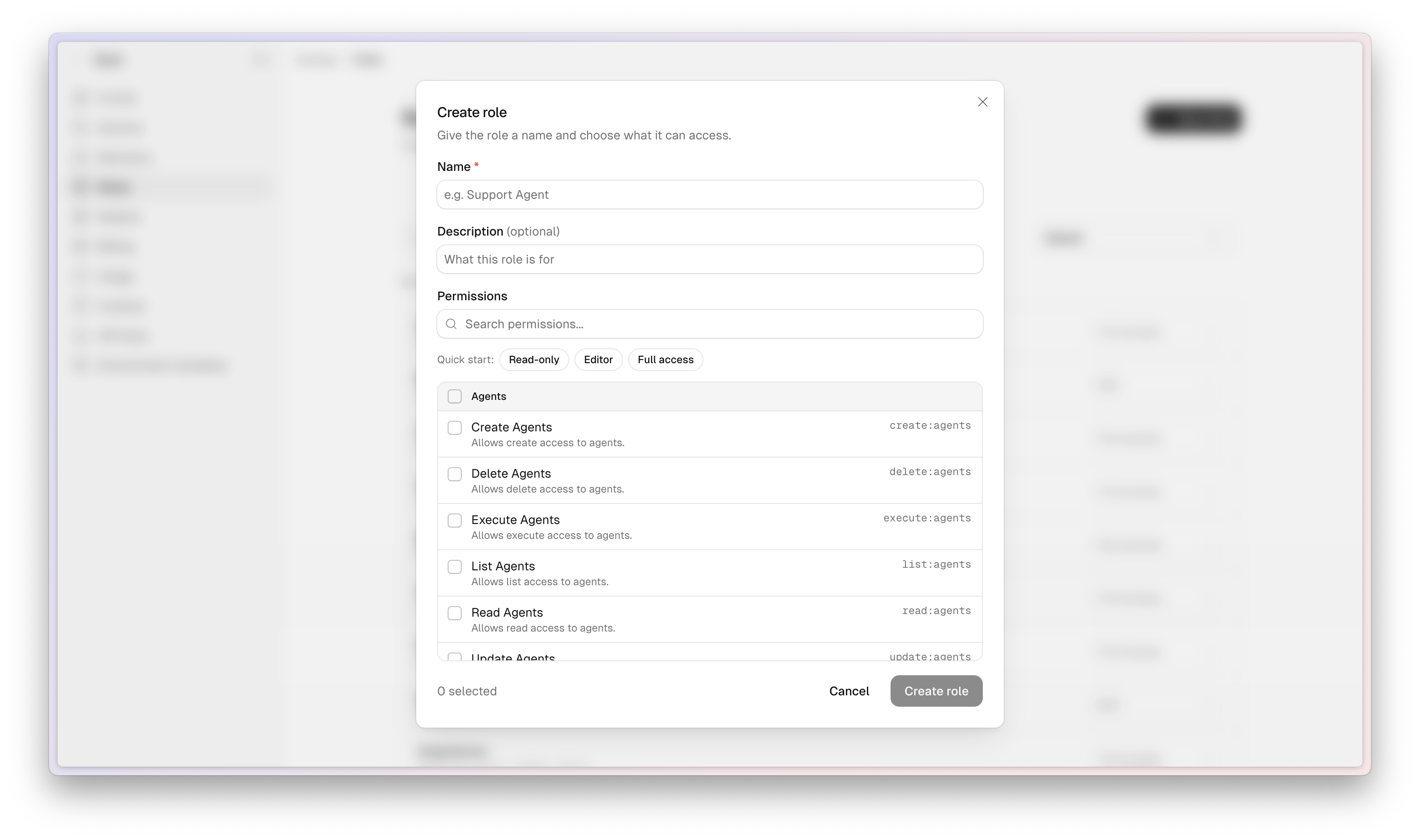 Open the workspace switcher, choose **Settings**, then choose **Roles**.
Click **New Role**. The **Create role** dialog opens.
Enter a **Name** (required), for example `Support Agent`. Add an optional **Description**.
Use a **Quick start** chip (**Read-only**, **Editor**, or **Full access**) to apply a starting set, then check or uncheck individual permissions. Search to find a resource. The footer shows how many permissions are selected.
Click **Create role**. The button stays disabled until the role has a name and at least one permission. The new role appears in the role dropdown and is ready to assign on **Members**.
### Permission levels
For each resource, choose a level. Switch to **Custom** if you need to pick exact actions.
| Level | Grants |
| --------------- | ------------------------------------------- |
| **No access** | Nothing on that resource |
| **View** | Read and list |
| **Edit** | Create and update, but not delete or manage |
| **Full access** | Every action on that resource |
| **Custom** | The exact actions you check |
On the Roles page, Owners can change these levels inline for a custom role. Scout saves after a short pause and shows **Changes saved**. System roles stay read-only.
To rename a custom role or change its permissions in the dialog, open the **⋯** menu and choose **Edit role**.
## Delete a custom role
Open **⋯** on a custom role and choose **Delete role**. Confirm in the dialog.
Members still assigned that role lose the permissions it granted. This cannot be undone. If they still need access, assign a different role on **Settings → Members** first.
## Assign roles to members
Owners and Admins assign roles from **Settings → Members**. You can set a role when you invite someone, and you can change it later for an existing member or a pending invite.
### Invite someone with a role
Open the workspace switcher, choose **Settings**, then choose **Members**.
Click **Add Member**.
Select the system or custom role they should receive.
Enter their email and send the invitation. They join with that role when they accept.
### Change a member or invite role
On **Settings → Members**, open the actions menu on a person or pending invite and choose **Edit role**. Pick the new role and save.
You cannot change your own role. Ask another Admin or Owner to update it. You also cannot remove or demote the last Owner in the workspace.
## Who can do what on Roles and Members
| Action | Owner | Admin | Editor / Member |
| ------------------------------------ | ----- | --------------- | --------------- |
| Open **Settings → Roles** | Yes | Yes (view only) | No |
| Create, edit, or delete custom roles | Yes | No | No |
| Open **Settings → Members** | Yes | Yes | No |
| Invite people and assign roles | Yes | Yes | No |
## Troubleshooting
| Issue | What to do |
| ------------------------------------------------------ | ------------------------------------------------------------------------------------ |
| **Roles** is missing from Settings | You need Admin or Owner. Ask an Owner to change your role on **Members**. |
| You can open Roles but there is no **New Role** button | You are viewing as Admin. Ask an Owner to create or edit custom roles. |
| Permission dropdowns are not editable | System roles are read-only. Select a custom role, or create one if you are an Owner. |
| Can't change your own role | Open **Members** as a different Admin or Owner, then use **Edit role** on your row. |
| Can't remove or demote an Owner | The workspace must keep at least one Owner. Promote someone else first. |
## Next steps
Create credentials for integrations and pipelines. Admins and Owners manage keys.
Owners control which models the workspace can use.
Owners manage plan and usage billing.
Open the workspace switcher, choose **Settings**, then choose **Roles**.
Click **New Role**. The **Create role** dialog opens.
Enter a **Name** (required), for example `Support Agent`. Add an optional **Description**.
Use a **Quick start** chip (**Read-only**, **Editor**, or **Full access**) to apply a starting set, then check or uncheck individual permissions. Search to find a resource. The footer shows how many permissions are selected.
Click **Create role**. The button stays disabled until the role has a name and at least one permission. The new role appears in the role dropdown and is ready to assign on **Members**.
### Permission levels
For each resource, choose a level. Switch to **Custom** if you need to pick exact actions.
| Level | Grants |
| --------------- | ------------------------------------------- |
| **No access** | Nothing on that resource |
| **View** | Read and list |
| **Edit** | Create and update, but not delete or manage |
| **Full access** | Every action on that resource |
| **Custom** | The exact actions you check |
On the Roles page, Owners can change these levels inline for a custom role. Scout saves after a short pause and shows **Changes saved**. System roles stay read-only.
To rename a custom role or change its permissions in the dialog, open the **⋯** menu and choose **Edit role**.
## Delete a custom role
Open **⋯** on a custom role and choose **Delete role**. Confirm in the dialog.
Members still assigned that role lose the permissions it granted. This cannot be undone. If they still need access, assign a different role on **Settings → Members** first.
## Assign roles to members
Owners and Admins assign roles from **Settings → Members**. You can set a role when you invite someone, and you can change it later for an existing member or a pending invite.
### Invite someone with a role
Open the workspace switcher, choose **Settings**, then choose **Members**.
Click **Add Member**.
Select the system or custom role they should receive.
Enter their email and send the invitation. They join with that role when they accept.
### Change a member or invite role
On **Settings → Members**, open the actions menu on a person or pending invite and choose **Edit role**. Pick the new role and save.
You cannot change your own role. Ask another Admin or Owner to update it. You also cannot remove or demote the last Owner in the workspace.
## Who can do what on Roles and Members
| Action | Owner | Admin | Editor / Member |
| ------------------------------------ | ----- | --------------- | --------------- |
| Open **Settings → Roles** | Yes | Yes (view only) | No |
| Create, edit, or delete custom roles | Yes | No | No |
| Open **Settings → Members** | Yes | Yes | No |
| Invite people and assign roles | Yes | Yes | No |
## Troubleshooting
| Issue | What to do |
| ------------------------------------------------------ | ------------------------------------------------------------------------------------ |
| **Roles** is missing from Settings | You need Admin or Owner. Ask an Owner to change your role on **Members**. |
| You can open Roles but there is no **New Role** button | You are viewing as Admin. Ask an Owner to create or edit custom roles. |
| Permission dropdowns are not editable | System roles are read-only. Select a custom role, or create one if you are an Owner. |
| Can't change your own role | Open **Members** as a different Admin or Owner, then use **Edit role** on your row. |
| Can't remove or demote an Owner | The workspace must keep at least one Owner. Promote someone else first. |
## Next steps
Create credentials for integrations and pipelines. Admins and Owners manage keys.
Owners control which models the workspace can use.
Owners manage plan and usage billing.