Model Management
Model Management lets you control which AI models are available to your team in Scout Studio. Enable models from supported providers, set an org-wide default, and ensure agents are only built on the models your org has approved.
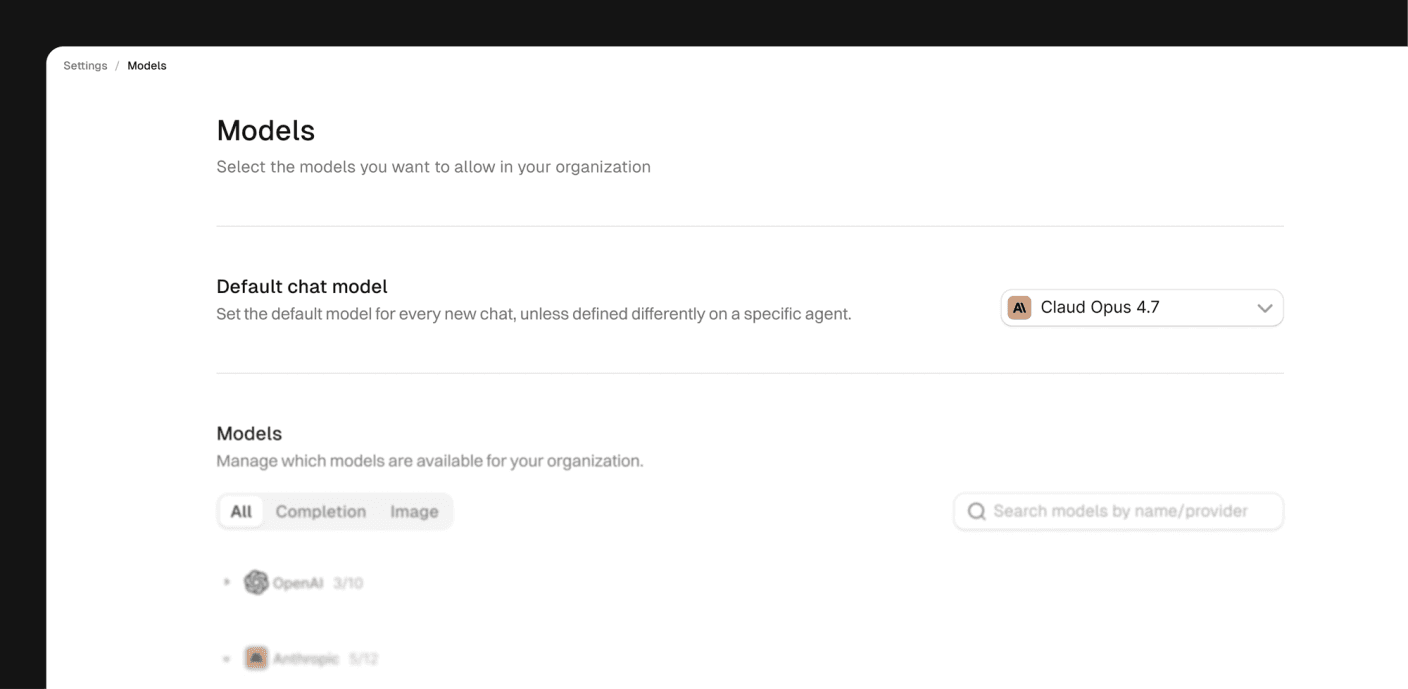
Where to find it
Navigate to Settings in the left sidebar, then select Models.
Model Management settings apply to your entire organization. Only org admins can enable, disable, or change the default model.
Enabling models
Models are organized by provider. Each provider row shows how many models are currently enabled out of the total available (for example, OpenAI 3/10).
- Go to Settings → Models.
- Expand a provider to see its individual models.
- Toggle on the models you want to make available to your team.
Use the All, Completion, and Image tabs to filter by model type, or search by name or provider.
Enabled models are immediately available for use in agents.
Setting a default model
The default model is pre-selected for every new chat, unless a specific agent overrides it. Set it to a cost-efficient model that works well for most everyday tasks.
- Go to Settings → Models.
- Under Default chat model, open the dropdown.
- Select the model you want as the org default.
The selected model is pre-filled in new chats and as the starting choice in the agent editor.
How it affects agents
When a team member opens the agent editor, the model picker shows only the models your org has enabled. The org default is pre-selected, but the agent creator can choose any other enabled model.
This means you can:
- Ensure agents only use models your org has vetted and approved
- Keep costs predictable by limiting available options
- Set a cost-efficient default for everyday use while keeping powerful models available for specific agents
- Modify models assigned to existing agents individually or in bulk
Disabling a model
When you disable a model that agents or workflows already use, Scout shows you how many items are affected and asks you to pick a replacement before completing the action.
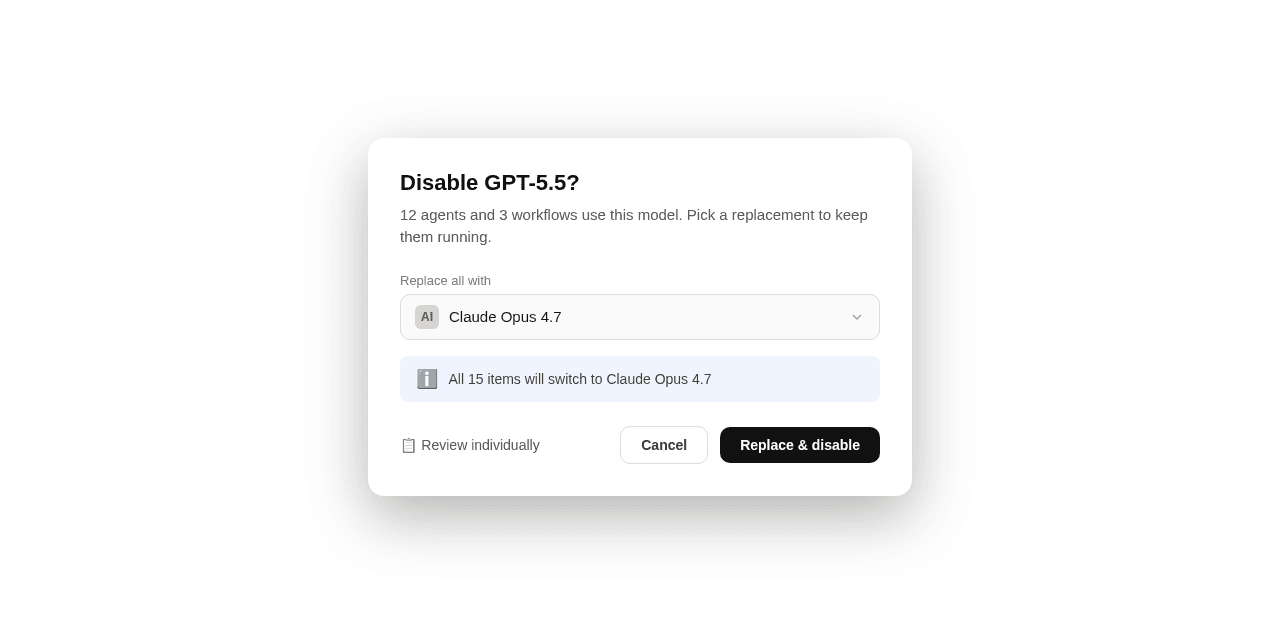
Scout offers two ways to handle the replacement:
- Replace all with — Choose one replacement model and apply it to every affected agent and workflow at once, then click Replace & disable.
- Review individually — Scout opens a table listing each affected item so you can assign a different replacement model per item before clicking Disable.
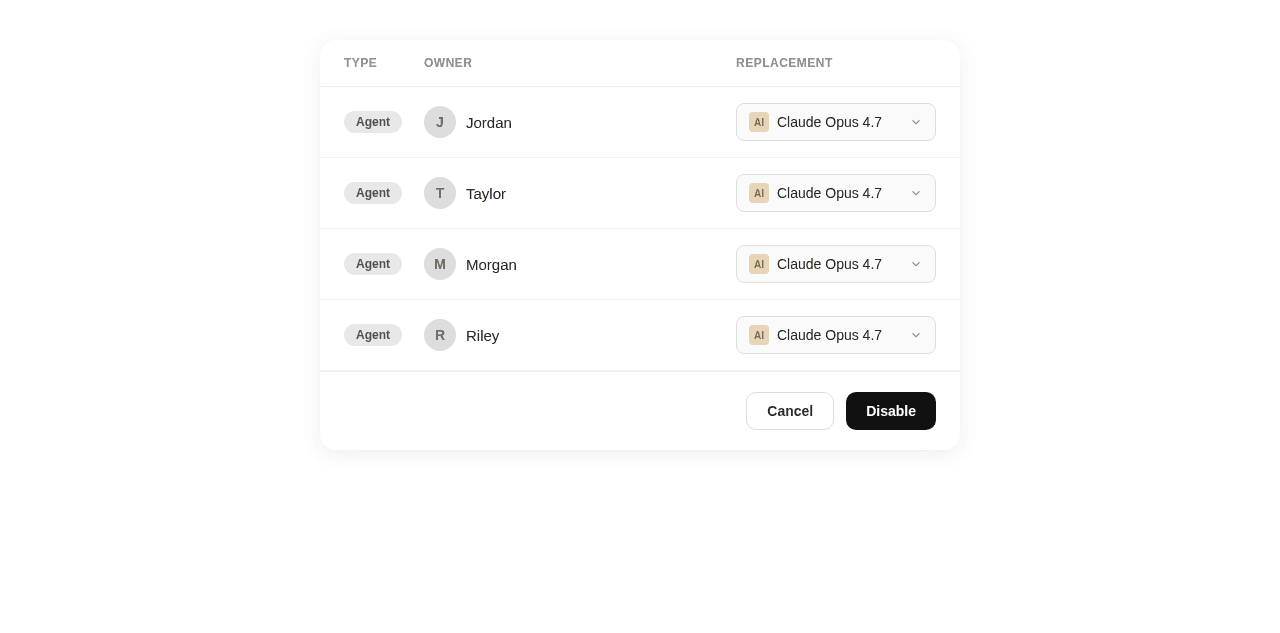
Agents using a disabled model will still run until the replacement is applied. Review and confirm replacements before closing the dialog.
Troubleshooting
| Issue | Likely cause | Solution |
|---|---|---|
| Model not appearing in agent editor | Model not enabled for org | Go to Settings → Models and toggle it on |
| Cannot change settings | Not an org admin | Ask your org admin to make the change |
| Default model not pre-selected | Browser cache | Hard refresh the page (Cmd+Shift+R / Ctrl+Shift+R) |
| Agent using wrong model after change | Agent has a pinned model override | Open the agent editor and update the model setting directly |