Slack
Connect your Slack workspace so Scout agents can read conversations, post messages, and work alongside your team.
What You Can Do
| Capability | Example |
|---|---|
| Post to channels | Share summaries, alerts, and updates |
| Read threads | Understand context before responding |
| Search history | Find past discussions and decisions |
| React and reply | Acknowledge messages and continue conversations |
Quick Setup
The setup takes about 5 minutes. You’ll switch between Scout and Slack a few times.
Step 1: Connect Slack to Scout
📍 In Scout
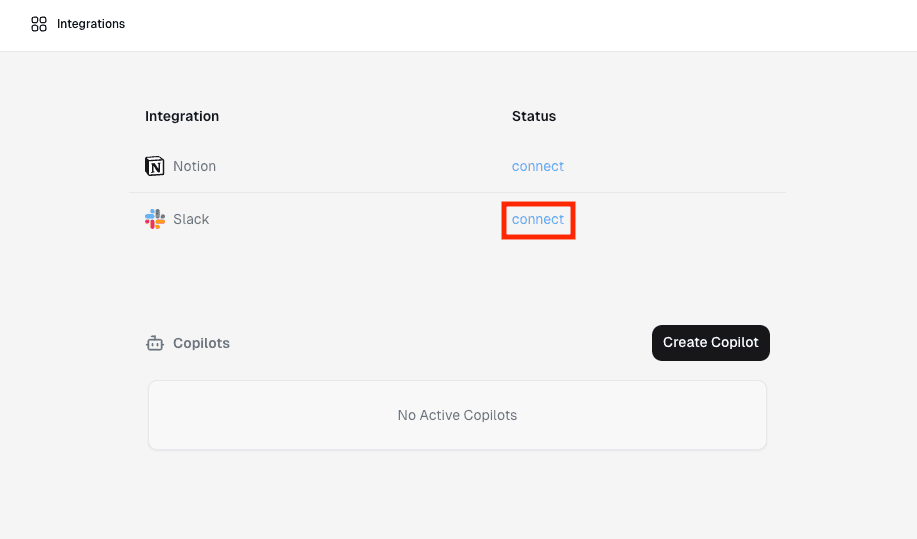
- Go to studio.scoutos.com/integrations
- Find Slack and click Connect
📍 In Slack (you’ll be redirected)
- Select the Slack workspace you want to connect
- Review the permissions Scout is requesting and click Allow
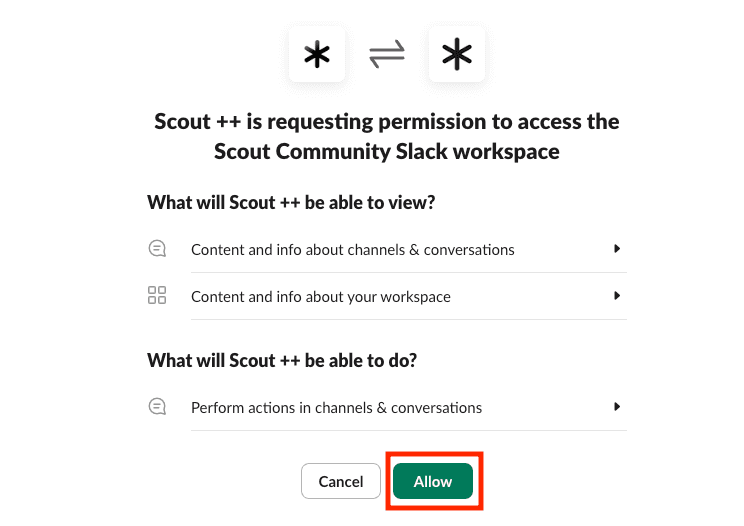
You’ll be redirected back to Scout when complete.
What permissions does Scout request?
Scout requests these permissions from Slack:
| Permission | What it’s for |
|---|---|
channels:history | Read messages in public channels |
groups:history | Read messages in private channels |
chat:write | Post messages to channels |
channels:read | List available channels |
groups:read | List private channels |
users:read | Look up user information |
reactions:write | Add emoji reactions to messages |
Scout only accesses channels you explicitly add it to (see Step 3).
Step 2: Configure Your Agent
There are two options to set up Slack for your agent:
Option A: Tools + Instructions (Flexible)
Use this when you want your agent to use Slack as one of many tools (reading channels, posting updates) but not actively monitoring conversations.
📍 In Scout
- Go to your agent’s Settings
- Click the Add Tool button in Tools section
- Search for Slack in the available tools
- In your agent’s Instructions, specify which channels:
You can access the following Slack channels:
- #general - for team announcements
- #engineering - for technical discussions
- #alerts - for posting incident summaries
Option B: Deployments (Channel-First)
Use this when you want the agent to live in a Slack channel — listening, responding, and staying in the conversation rather than just acting on demand.
📍 In Scout
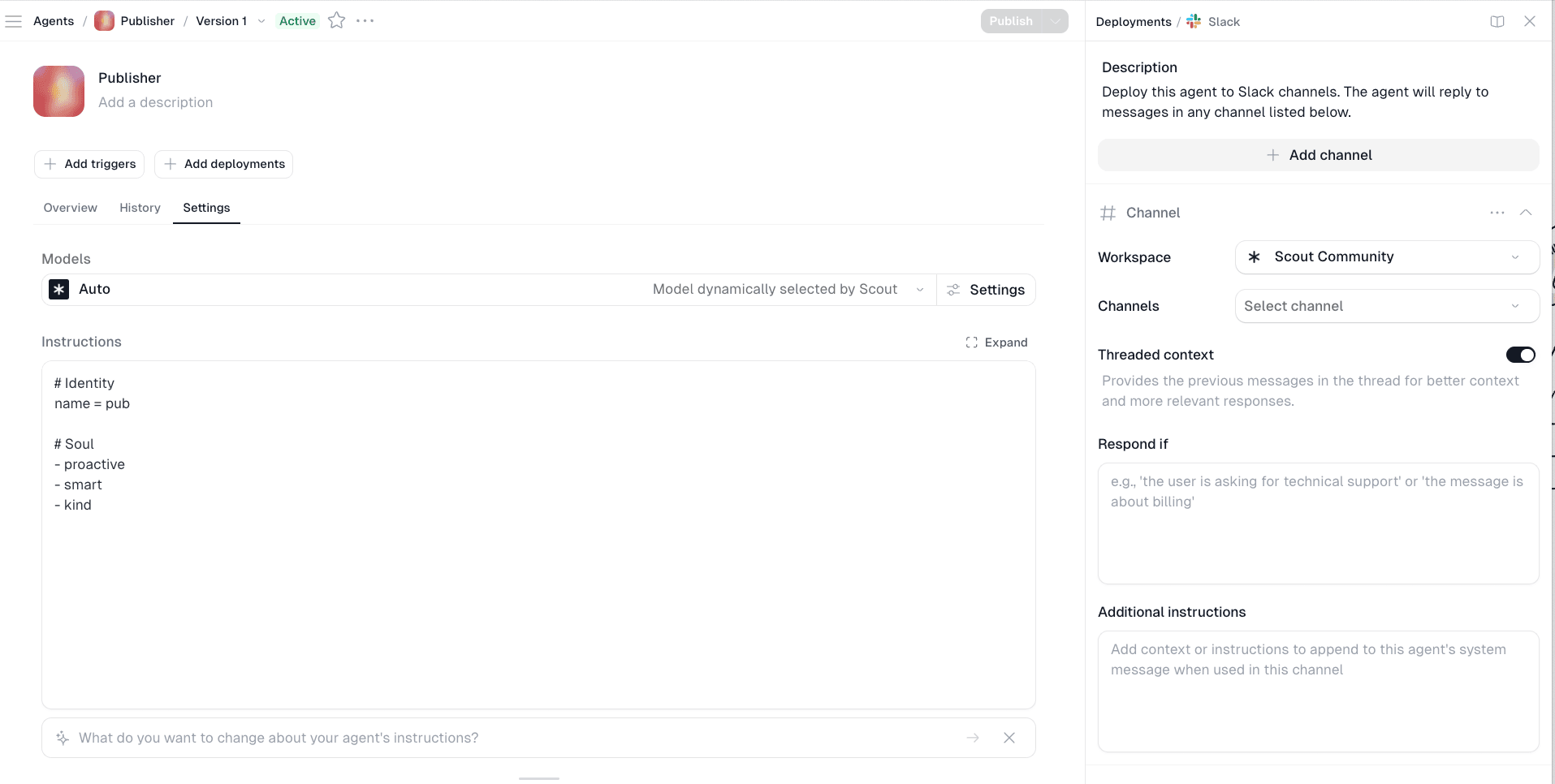
- Go to your agent’s Settings
- Click + Add Deployments → Slack
- A configuration panel opens on the right. Select your Workspace and then pick the Channel where the agent should operate
- Configure the deployment options (see below), then click + Add channel to save
Deployment options
| Option | What it does |
|---|---|
| Workspace | Which Slack workspace to deploy to — must be connected first in Integrations |
| Channels | The specific channel this deployment monitors and responds in |
| Threaded context | Passes prior thread messages to the agent so it can give relevant, in-context replies instead of treating every message as a fresh conversation |
| Respond if | An optional condition that filters when the agent jumps in — e.g. “the user is asking for technical support”. Leave blank and it responds to everything |
| Additional instructions | Channel-specific instructions appended to the agent’s system prompt — useful for adjusting tone, scope, or behavior per channel |
You can add multiple channels to a single agent. Each channel gets its own configuration.
What to watch for: If you leave “Respond if” blank, the agent replies to every message in the channel. That’s fine for a dedicated support bot, but not ideal for a general channel like #general. Set a condition to keep things focused.
What’s the difference between Tools and Deployments?
Tools give your agent access to Slack capabilities. The agent decides when to read or post messages based on your instructions.
Deployments create a persistent presence in specific channels. The agent actively monitors and responds to messages in those channels, similar to a team member.
Most setups use both: enable Slack tools for flexibility, then add a deployment for channels where you want always-on availability.
Step 3: Add Scout to Your Channels (Required)
📍 In Slack
Whether you use Tools, Deployments, or both, you need to add Scout to each channel in Slack.
This is the step most people forget. Even after configuring everything in Scout, the bot can’t see any channels until you invite it.
For each channel where you want Scout to work:
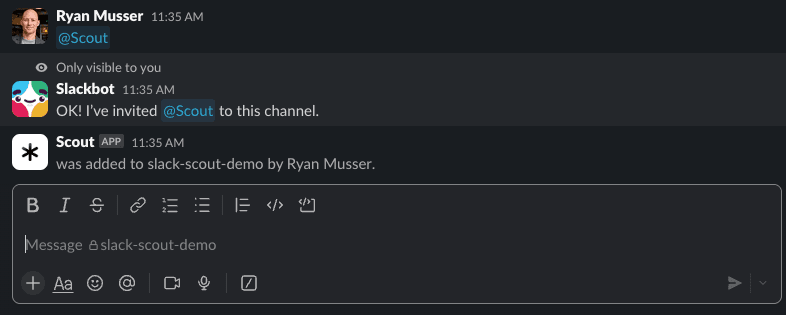
Option A: Slash command (fastest)
- Go to the channel in Slack
- Type:
/invite @Scout - Press Enter
Option B: Channel settings
- Click the channel name at the top
- Go to Integrations → Add apps
- Search for “Scout” and click Add
Repeat for each channel your agent needs to access.
Note: Scout can only read messages posted after it’s added to a channel. It won’t have access to earlier history. If you need context from past discussions, copy and paste the relevant content into your agent’s instructions or a connected knowledge source.
Testing Your Integration
Once setup is complete, test it:
- In Scout, chat with your agent and ask it to post a test message to a channel
- Check that the message appears in Slack
- Reply to the message in Slack
- Verify your agent sees the response in Scout
For Deployment setups:
- Go to one of your configured channels in Slack
- Mention the agent or send a message
- Verify the agent responds
Example Prompts
Once connected, here’s what you can ask your agent:
- “Summarize the discussion in #engineering and post the key points to #general”
- “Find messages about the API outage yesterday and create a timeline”
- “Post a weekly digest to #general based on activity in engineering channels”
- “Read the thread in #support about the login issue and propose solutions”
Troubleshooting
Agent says “I can’t access that channel”
Scout needs to be added to each channel individually. Go to the channel in Slack and invite Scout:
/invite @ScoutIf you’re still having trouble, check that:
- You’re in the correct Slack workspace (the one you connected)
- The channel name in your agent instructions matches exactly
- For Deployments: the channel is listed in your deployment settings
Agent can’t read replies to its messages
Scout can only read messages and replies posted after it was added to the channel. Historical messages from before the invitation aren’t accessible.
For new threads, make sure Scout is added to the channel before starting the conversation.
I connected Slack but my agent doesn’t see Slack tools
- Go to your agent’s Tools tab
- Make sure the Slack tools are toggled on
- Check that Slack appears in your integrations list as connected
My Slack workspace isn’t showing up
If you’re signed into multiple Slack workspaces, make sure you select the correct one during authorization. You can disconnect and reconnect if needed:
- Go to studio.scoutos.com/integrations
- Find Slack and click Disconnect
- Click Connect and select the correct workspace
Deployments: My agent isn’t responding in Slack
For Deployment-based setups, check:
- Is the deployment saved? Go to Settings → Deployments and verify the Slack deployment exists
- Are channels configured? Click the deployment to see which channels are listed
- Is Scout in those channels? Run
/invite @Scoutin each channel - Is the agent active? Check that your agent is published and not in draft mode
Next Steps
- Notion: Save decisions to durable documentation
- Integrations Overview: Build your full integration stack
- Agent Scheduling: Automate regular Slack updates
Built with ❤️ by Scout OS