Deployments
The Deployments view is your central place to see and manage which Slack channels your agents are active in. You can deploy agents to new channels, track which ones are live, and browse all available channels across your connected workspaces.
Getting there
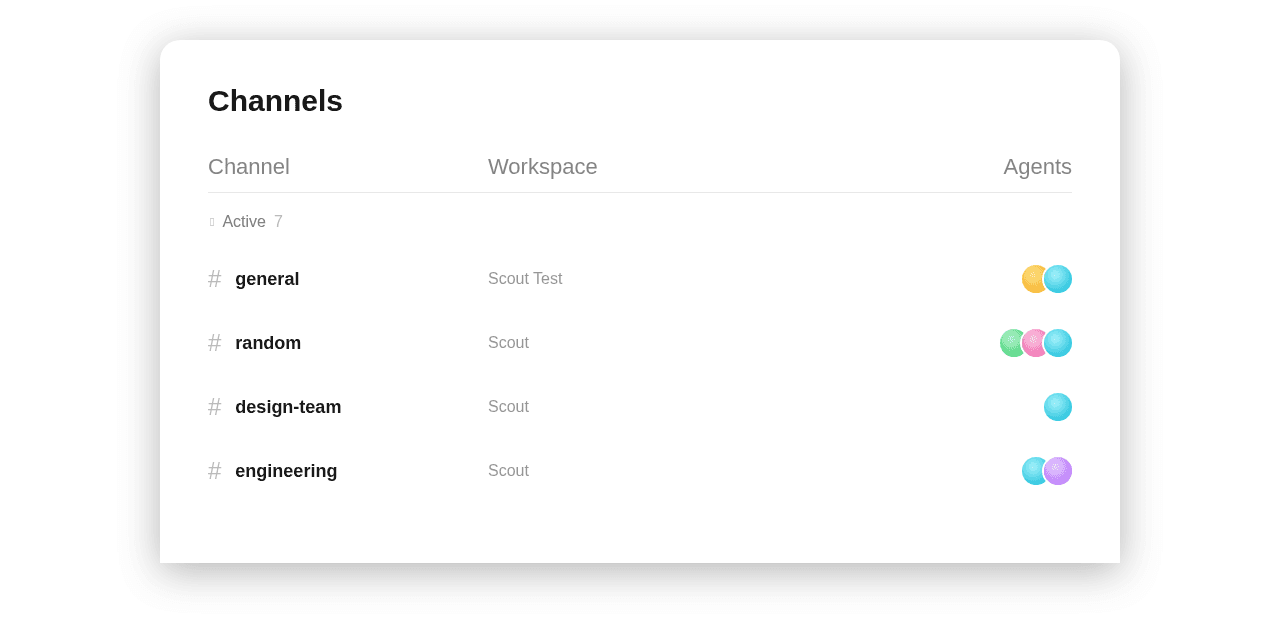
In Scout Studio, select Deployments from the left sidebar. You will see all Slack channels from your connected workspaces, grouped into Active and Inactive.
Active and inactive channels
Active channels have at least one agent running in them. Each active channel shows the workspace it belongs to and a set of gradient orbs representing the agents deployed there. You can have multiple agents active in the same channel.
Inactive channels are available in your connected Slack workspace but have no agents deployed. Public channels appear with a # icon and private channels with a lock icon.
Deploying an agent to a channel
- Find the channel you want to deploy to. Use the search bar to filter by name, or use the All workspaces dropdown to narrow by workspace.
- Click the + button on the right side of the channel row.
- Select the agent you want to deploy from the picker.
The channel moves from Inactive to Active and the agent orb appears.
Adding a new channel
If the channel you want is not listed, click Add agent in the top right. This lets you configure a new Slack channel connection and assign an agent to it.
Next steps
- Slack Integration — Connect your Slack workspace to Scout
- Copilot — Embed agents on your website or in your app
- Agent Scheduling — Run agents automatically on a schedule