Sharing Drive Files
Give anyone access to a file with a link. No Scout account required.
Overview
Every file in Scout Drive can be shared via a link. When you share a file, Scout generates a unique URL that anyone can view or download. You decide whether that link is open to the world or locked behind a password.
The Drive panel is accessible from the left sidebar in your Studio workspace. Look for the Drive icon to open your file list.
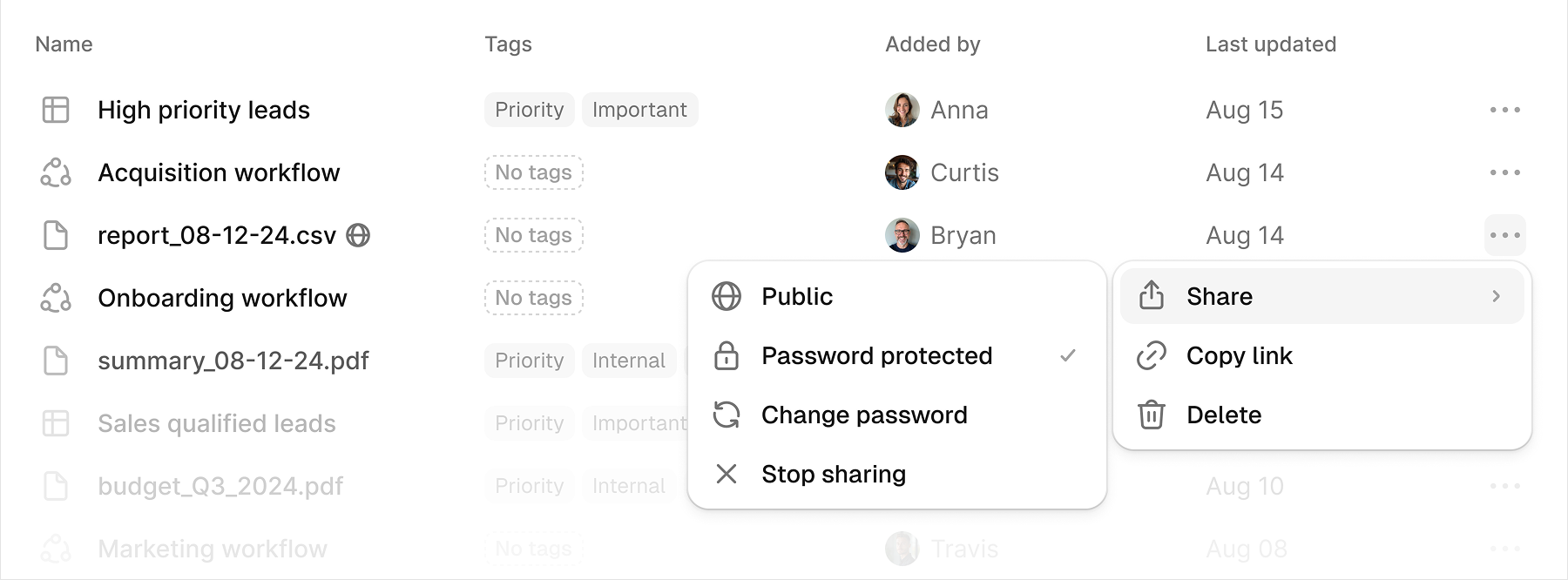
Shared files show a small globe icon (🌐) next to their name in the file list, so you can tell at a glance what’s publicly accessible without opening any menus.
How to Share a File
- Open Drive from the left sidebar in your Studio workspace
- Find the file you want to share
- Click the ··· menu on the right side of the file row
- Select Share
A submenu opens with your sharing options.
Sharing Options
Public
Choosing Public makes the file accessible to anyone with the link. No login needed, no password required.
This works well when you’re sending something to a client, a teammate, or an external tool and you want zero friction on their end. The file stays where it is in your Drive; you’re just making it reachable from outside.
Password Protected
Choosing Password Protected creates a share link that visitors have to unlock with a password. Scout generates the initial password for you, and you can swap it out anytime.
Pick this option when the file holds something sensitive and you want more control over who can actually get in.
A checkmark marks the active sharing mode so you know which one is set.
Copy the Share Link
Once sharing is on, click Copy link to grab the file URL and put it on your clipboard. Send it by email, Slack, in a workflow output, or anywhere else you need it.
The link stays active until you update the sharing settings or turn sharing off.
Change the Password
If you need to rotate the password on a protected file (say, after someone’s project wraps up and they no longer need access), click Change password. Scout generates a fresh password right away, and the old one stops working immediately.
Keep in mind that anyone who had the old credentials won’t be able to open the file again until you send them the new password.
Stop Sharing
Click Stop sharing to cut off access. The link goes dead instantly; anyone who tries to use it hits an error. Nothing happens to the actual file; it stays in your Drive exactly as it was.
The Globe Icon
Any file with an active share link (public or password protected) shows a globe icon next to its name in the Drive list. It’s a quick way to spot what’s shared without digging into the menus.
Files without the icon are private and only accessible inside your Scout workspace.
Let Your Agent Do It
You don’t have to manage sharing manually. Scout agents can create a file, save it to Drive, publish it, and send you the link in a single conversation.
Try asking your agent:
Create an HTML page and save it to Drive. Let’s call it “Scout Rocks” and make it very snazzy, bright, and glowy, then publish it so it’s public, and send me the URL.
The agent takes it from there. It generates the file, writes it to your Drive, sets sharing to Public, and returns the link in chat. No menus, no extra steps.
This works for any file type your agent can produce: HTML pages, markdown documents, CSVs, generated reports. If the agent can write it, it can save and share it.
Tips
- Use password protection for financial reports, client data, internal documents, or anything you wouldn’t want fully public.
- Rotate passwords if a link has been shared around and the audience has shifted.
- Turn off sharing when the work is done. Old links don’t expire on their own.
- If you need access to automatically expire, stop sharing manually once your deadline passes.
Next Steps
- Drive Overview: Learn more about how Scout Drive works
- Drive API Reference: Manage files and sharing programmatically
Built with ❤️ by Scout OS