

- Saved revisions — capture changes to your agent’s configuration when you save
- Version isolation — preview a revision without changing production traffic
- Traffic splits — send a share of new sessions to a candidate revision before promoting it
- Promotion — make a revision active when you’re ready to end a split
- Instant rollback — revert to a previous version in seconds
The Problem It Solves
Agent configurations are complex. A single agent ties together prompts, model parameters, database connections, workflows, skills and integrations, permissions, and scheduling. Change one prompt to fix an edge case and you might quietly break three others. Without version control, teams resort to workarounds: duplicating agents, copy-pasting configs into documents, or simply hoping the last change was an improvement. Agent Versioning replaces all of that with systematic change tracking and one-click rollback — no workarounds needed.Demo
How It Works
1
Version creation
Saving an agent captures everything that changed — prompts, model parameters, database connections, workflows, skills and integrations, and scheduling. Each version gets its own unique agent ID.
2
Version isolation
Older revisions stay accessible. You can open, preview, compare, and debug them without changing production traffic.
3
Production promotion
Promote makes a revision active. With no split, it receives 100% of new sessions across deployments and execution channels. During a split, promoting ends the split after confirmation.
4
Instant rollback
Rolling back switches the active version pointer to a previous agent ID. There’s no redeployment and no rebuild — the change takes effect immediately.
Saving Versions
When you save an agent, choose whether to publish the new revision:- Publish — creates a revision and makes it active. During a split, Scout asks you to confirm that publishing ends the split.
- Save — creates a revision without publishing it. You can test it without sending it production traffic. During a split, choose Save, keep split to create a revision without ending the split.
Viewing Version History
The version history panel lists every version of an agent. For each one, you can see:- Agent ID — the unique identifier for that version
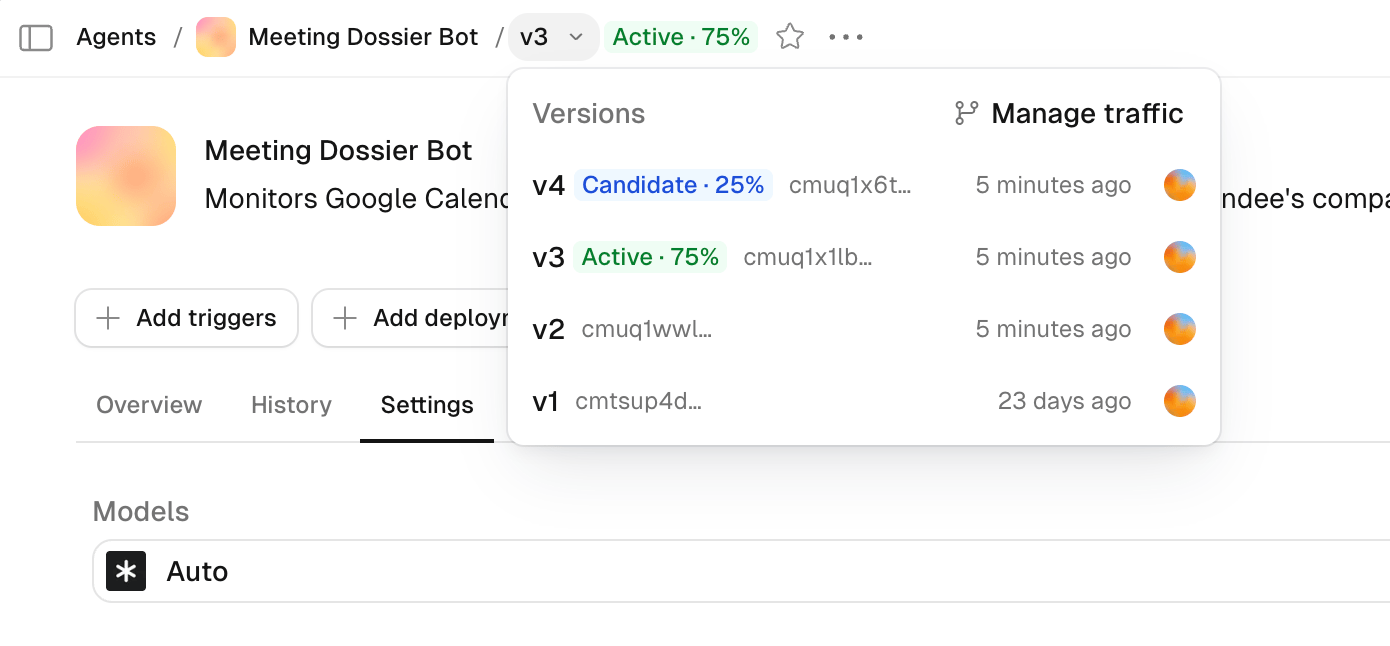
- Status — whether the revision is Active, Candidate, or not receiving traffic
- Created date — when the version was saved
- Author — who made the change
- Diff — what changed compared to the previous version
Split traffic between revisions
Use a traffic split to compare a saved revision with the active revision on real sessions before you promote it.1
Save a revision
Make your changes and click Save without publishing. You can test the saved revision before sending it traffic.
2
Open traffic management
Open Split traffic from Versions, the agent header menu, or the Traffic card. If a split is already running, select Manage traffic to change it.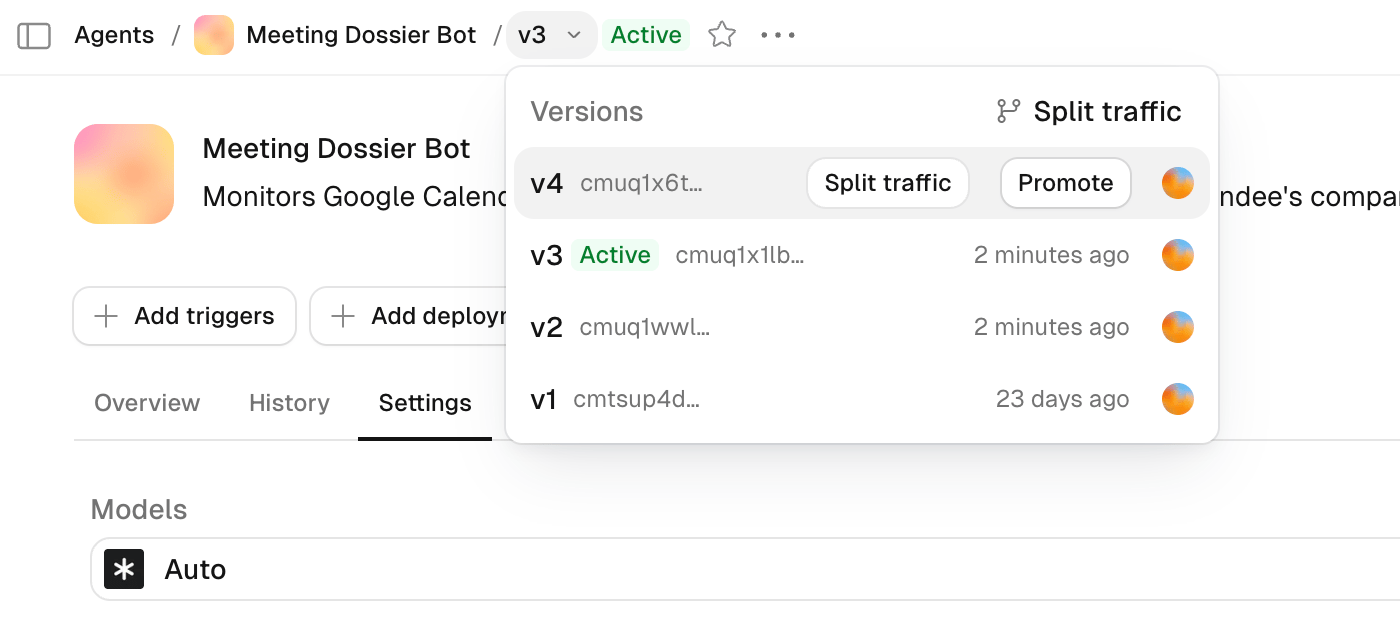
3
Choose a candidate and percentage
Select one saved revision as the Candidate and assign it 1–99% of new sessions. The Active revision receives the remainder. Enter a percentage or use the 5%, 10%, 25%, or 50% shortcuts, then click Save.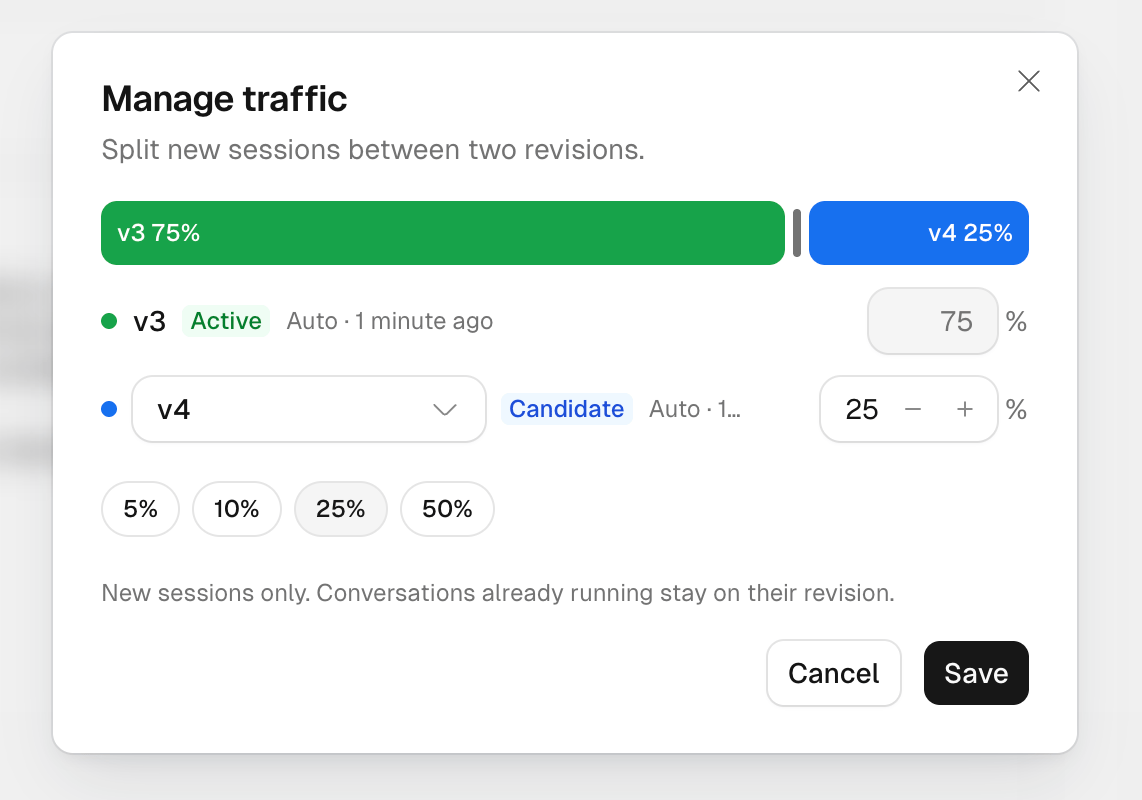
4
Compare and decide
Compare online evaluation scores for the revision that served each session. Adjust the candidate’s percentage in Manage traffic, or end the split. Scout does not pick a winner, ramp traffic, or roll back automatically.
Testing Specific Versions
- In Studio
- Via API
Open the revision you want to test and use the Interact panel. Preview runs stay on the revision you’re viewing, even during a traffic split. Score a few of those sessions with an online evaluation if you want a quality signal, not just a spot check.
Copilot Deployment Versioning
To validate a saved revision end to end in a separate Copilot deployment before sending it production traffic:1
Save as inactive
Make your changes and choose Save to create a revision without publishing.
2
Create a test deployment
Point a test Copilot deployment at the new version’s agent ID.
3
Validate
Exercise the test deployment until you’re confident the new version behaves correctly.
4
Promote
When you’re ready, Promote the revision. Production Copilot sessions follow the active revision or the traffic split without changing the embed snippet.
Use Cases
Iterative prompt development
Save each prompt iteration, test it against your validation data, and split new sessions before promoting one.
Integration testing
Add a new database connection in a fresh version and compare it against the current version before going live.
Model migration
Run versions in parallel to compare token costs and output quality before switching models.
Production rollback
Revert to a known-good version instantly while you debug the newer one.
Technical Details
- Agent IDs — every version has a unique agent ID (for example,
agent_abc123). The active version is tracked as metadata on the agent. - Version storage — each version is an immutable snapshot containing the full configuration (as JSON), references to the resources it uses, and metadata such as creator, timestamp, and parent version.
- Access control — version history is visible to anyone with access to the agent. Promoting and rolling back require edit permissions.
Limitations
- Historical versions can’t be edited directly. To change an old version, restore it as a new version and edit that.
Getting Started
1
Open an agent
Navigate to the agent you want to change in Scout Studio.
2
Edit the configuration
Make your changes — to the prompt, model, integrations, or anything else.
3
Save without publishing
Choose Save so production keeps running the current active revision.
4
Test and compare
Use the Interact panel to test the new version, and compare it against previous versions in the history panel.
5
Split traffic or promote
Send a share of new sessions to the candidate, or Promote it when you’re ready. If anything looks wrong later, use Roll back to return to a previous revision.
Next Steps
Deployments
Manage where your agents are live across Slack channels.
Copilot
Embed a specific agent version on your website or app.
Observability
Trace agent runs and debug behavior across versions.