

Getting There
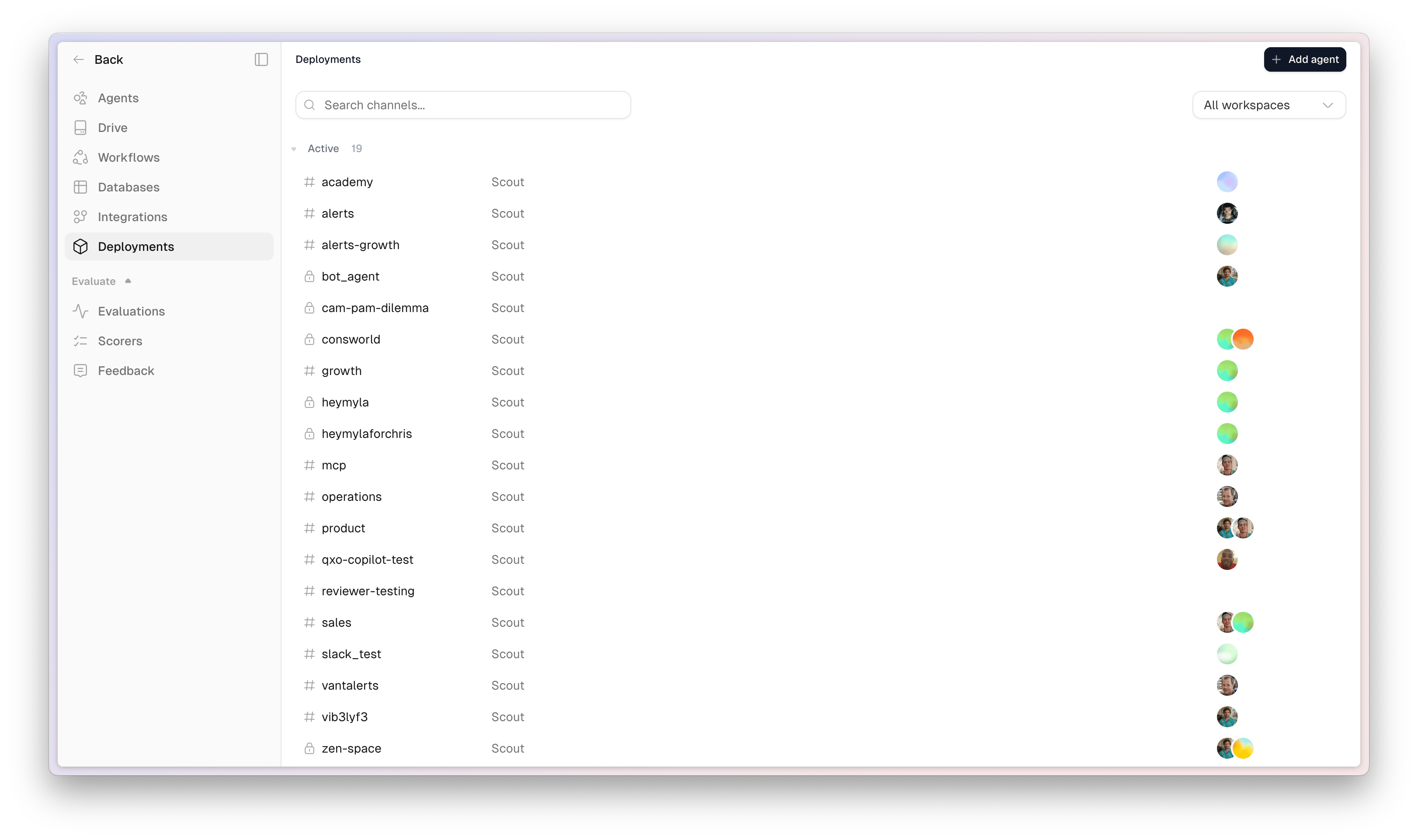
In Scout Studio, choose Deployments from the left sidebar. You’ll see all Slack channels from your connected workspaces, grouped into Active and Inactive.Active and Inactive Channels
Active channels have at least one agent running. Each shows its workspace and a set of gradient orbs representing the deployed agents. Multiple agents can be active in a single channel. Inactive channels exist in your workspace but have no agents deployed. Public channels appear with a# icon and private channels with a lock icon.
Deploying an Agent to a Channel
1
Find the channel
Locate your target channel using the search bar, or narrow the list with the All workspaces dropdown.
2
Add an agent
Click the + button on the right side of the channel row.
3
Pick the agent
Choose the agent you want to deploy from the picker.
Adding a New Channel
If the channel you want isn’t listed, click Add agent in the top right corner. This lets you configure a new Slack channel connection and assign an agent to it.Next Steps
Slack Integration
Connect your Slack workspace to Scout.
Copilot
Embed agents on your website or in your app.
Scheduling
Run agents automatically on a schedule.