

Prompted vs online
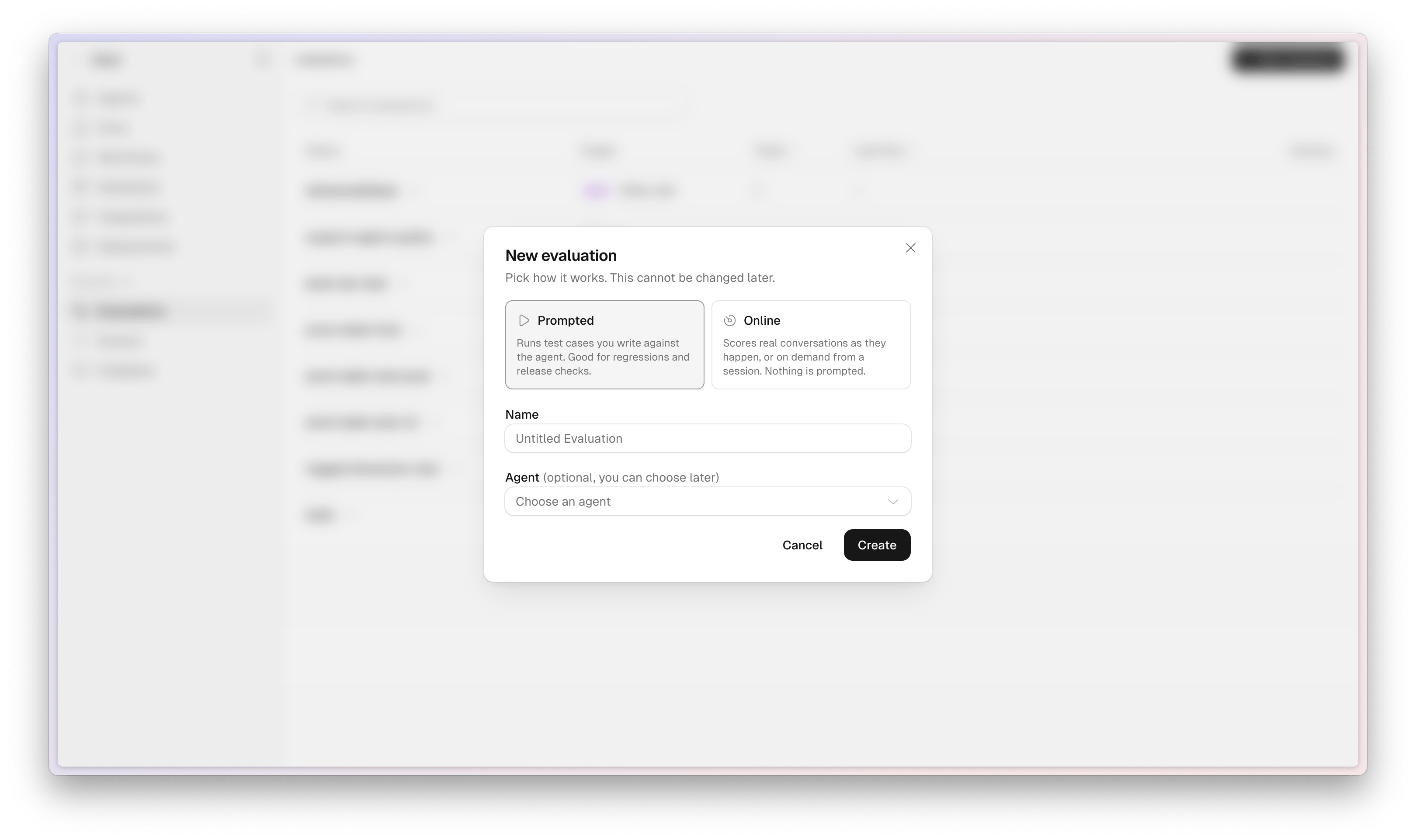
When you create an evaluation, you choose how it works. You cannot change this later.
This page covers online evaluations. Prompted suites still live under Evaluations and run test cases against an agent or workflow.
Create an online evaluation
1
Open Evaluations
In Scout Studio, choose Evaluations from the left sidebar, or go to studio.scoutos.com/evaluations.
2
Start a new evaluation
Click New Evaluation. Choose Online. The card reads: scores real conversations as they happen, or on demand from a session. Nothing is prompted.
3
Name it and pick an agent
Give it a clear name, for example
Support quality. Choose the Agent whose conversations this suite will score. An online evaluation always needs an agent.4
Click Create
Studio opens the suite setup. The page is labeled Online evaluation: it scores conversations this agent already had. There are no test cases.
Configure the suite
The setup page is a list of questions: what to read, what to look for, how much traffic to score, and which tags make a conversation eligible.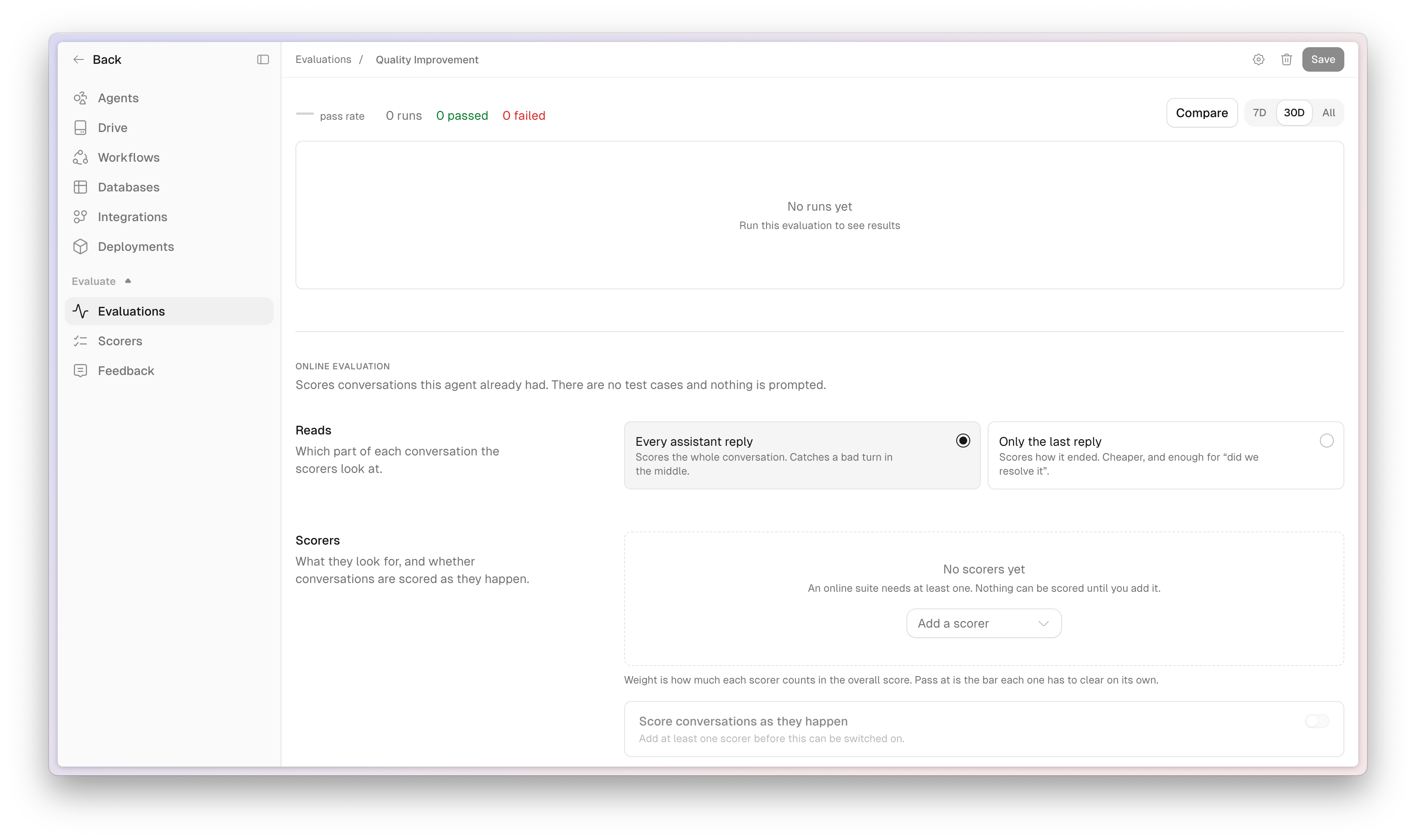
Reads
Choose which part of each conversation the scorers look at:- Every assistant reply — scores the whole conversation. Use this to catch a bad turn in the middle.
- Only the last reply — scores how it ended. Cheaper, and enough when you care about whether the issue was resolved.
Scorers
Add at least one scorer from your library. An online suite cannot run until it has one. For each scorer, set:- Weight — how much it counts in the overall score (0.1–10)
- Pass at — the bar that scorer has to clear on its own (a percentage)
Human-review scorers cannot run unattended, so you cannot add them to an online suite. Use an LLM judge or a code scorer instead. People can still rate a reply by hand. Those ratings land in Feedback.
Sample
Set the percent of matching conversations to score, from 0 to 100. Studio shows this as a normal percentage. Sampling is deterministic: the same conversation always gets the same include/exclude decision for a given suite, so re-runs are repeatable. A later message in that conversation is a new event and can receive a fresh decision. Leave this at 100% while you are rolling out. Turn it down if you want a quality signal without scoring every session.Tags
Narrow which conversations are eligible. Leave both lists empty to score every conversation for the agent.- Include — only conversations carrying these tags are eligible. With two or more tags, choose Any or All.
- Exclude — exclusions win. A conversation with a matching exclude tag is skipped even if it matched include.
:, _, and -, up to 32 characters, up to 20 tags per rule.
Eligibility uses the tags on the triggering event, not tags you add later. Attach tags when you create the session (for example source:end_user or team:support) so online scoring can filter on them.
Try it out
Click Try with a sample to paste a user message and an agent reply. The suite scores that output the same way it would score a live conversation. The agent is not run. Save first. The sample is scored by the saved suite, so unsaved edits would produce a misleading result.Score conversations as they happen
Under Scorers, turn on Score conversations as they happen. Saving your settings does not turn this on by itself — you flip the switch when you are ready. When it is on, Scout scores matching conversations as they arrive. Delivery is best effort: some conversations may go unscored. That limitation is shown next to the switch. Automatic scoring:- Runs only for agent-targeted online suites that have at least one automated scorer
- Applies tag filters and sampling before it retrieves or scores the session
- Records the result as an automatic run on the session
- Leaves the previous successful score in place if a later update is filtered, sampled out, empty, or fails
- Can finish work already accepted after you turn the switch off
Review scores on History
Open the agent and choose the History tab. Online suites add a Score column and a suite filter above the table. Each row shows the most recently updated composite score for the suite you have in focus. A+N badge means other suites also have a current score for that session. Hover the score for the suite name, percentage, and when it was evaluated.
Click a conversation to open the session drawer. The Scores tab lists every suite that has tried this session.
A scored session shows:
- A session-level verdict (Pass, At risk, or Fail) and a one-line reason
- Each suite’s composite, how many checks passed, and the individual scorer results
- Details — whether it was scored automatically or by hand, a link to the run, and weights
Score a session on demand
In the session drawer, click Score (or Score again if a score already exists). Pick one compatible suite or all of them. Prompted suites cannot score a past conversation and are listed as such. You can also click Score this session from the empty Scores state. Network retries reuse the same run. Choose Score again when you want a new run against the current conversation.How scoring works
Each scorer returns a score from 0 to 1. The suite composite is the weighted average of those scores. A suite passes only when every scorer clears its own Pass at bar — not when the composite looks high.
Current score means the newest successful run for one suite and one session. Several suites can each hold one current score on the same session.
A later attempt that is skipped or fails does not erase that current score. Studio still names the latest attempt so a stale score never reads as fresh.
What to expect in production
Online scoring is designed for a current quality signal, not a complete audit log.- Delivery is best effort. A conversation can complete for the user and still go unscored.
- Scores reflect the current persisted conversation, including compacted history. They do not promise every assistant message ever emitted.
- Sessions with no assistant reply are skipped and keep any prior score.
- Evaluation-generated agent traffic is excluded so the suite does not score itself.
- There is no quota beyond the sample rate you set. Start with a low sample if scorer cost matters.
- Turning the suite off stops new automatic work. Runs already accepted may still finish.
Best practices
- Start with Try with a sample, then score a few sessions by hand, then turn on Score conversations as they happen.
- Sample a percentage of live traffic first. Raise it once you trust the scorers.
- Tag production sessions (
source:end_user,team:support) and put those tags on Include so test chats do not mix into the quality signal. See Interaction tags. - Keep Every assistant reply when a bad middle turn would be a miss. Use Only the last reply when you care about resolution and want cheaper scoring.
- Treat At risk as a review queue: one check failed, the rest passed.
- After you change instructions or tools, re-score a handful of recent sessions with Score again instead of waiting for new traffic.
Next steps
Observability
Inspect History, Logs, and interaction tags for the same sessions you score.
Agent versioning
Test a saved revision, then split traffic and compare live scores for the revision that served each session before you promote it.
Getting started
Create or update the agent you want to evaluate.
Roles
Grant Evaluations create and execute access to the people who should score traffic.