

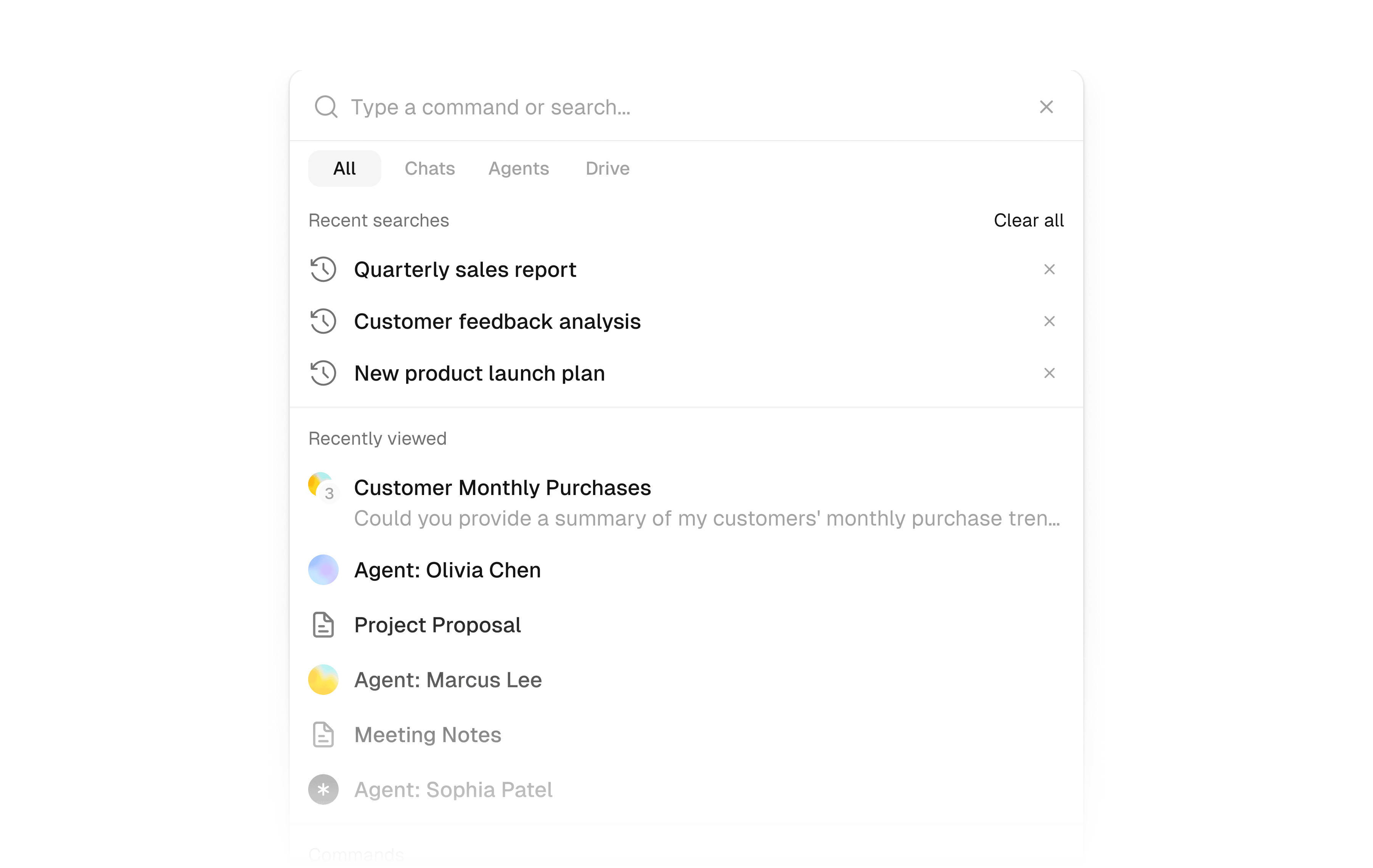
Opening Search
PressCmd+K on Mac or Ctrl+K on Windows. Search opens as a modal overlay on top of whatever you were working on.
To close it, press Escape or click anywhere outside the modal.
Navigating with Search
Once Search is open, you have two ways to get where you want to go.Type to search
Type any destination — an agent name, a section, a table, or a workflow — and matching results appear instantly, grouped by section.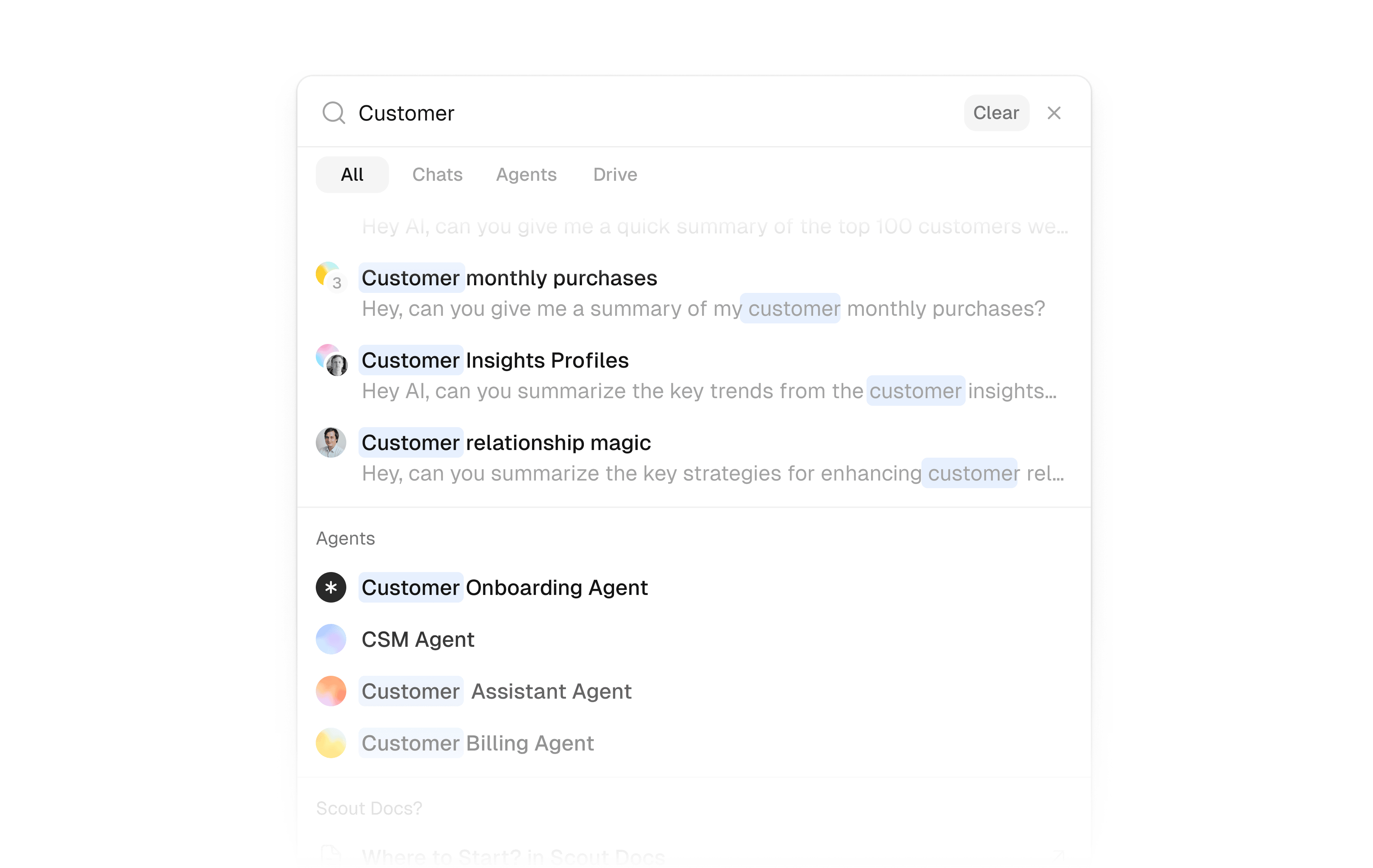
Enter to navigate to the top result, or use the arrow keys to highlight a different one before opening it.
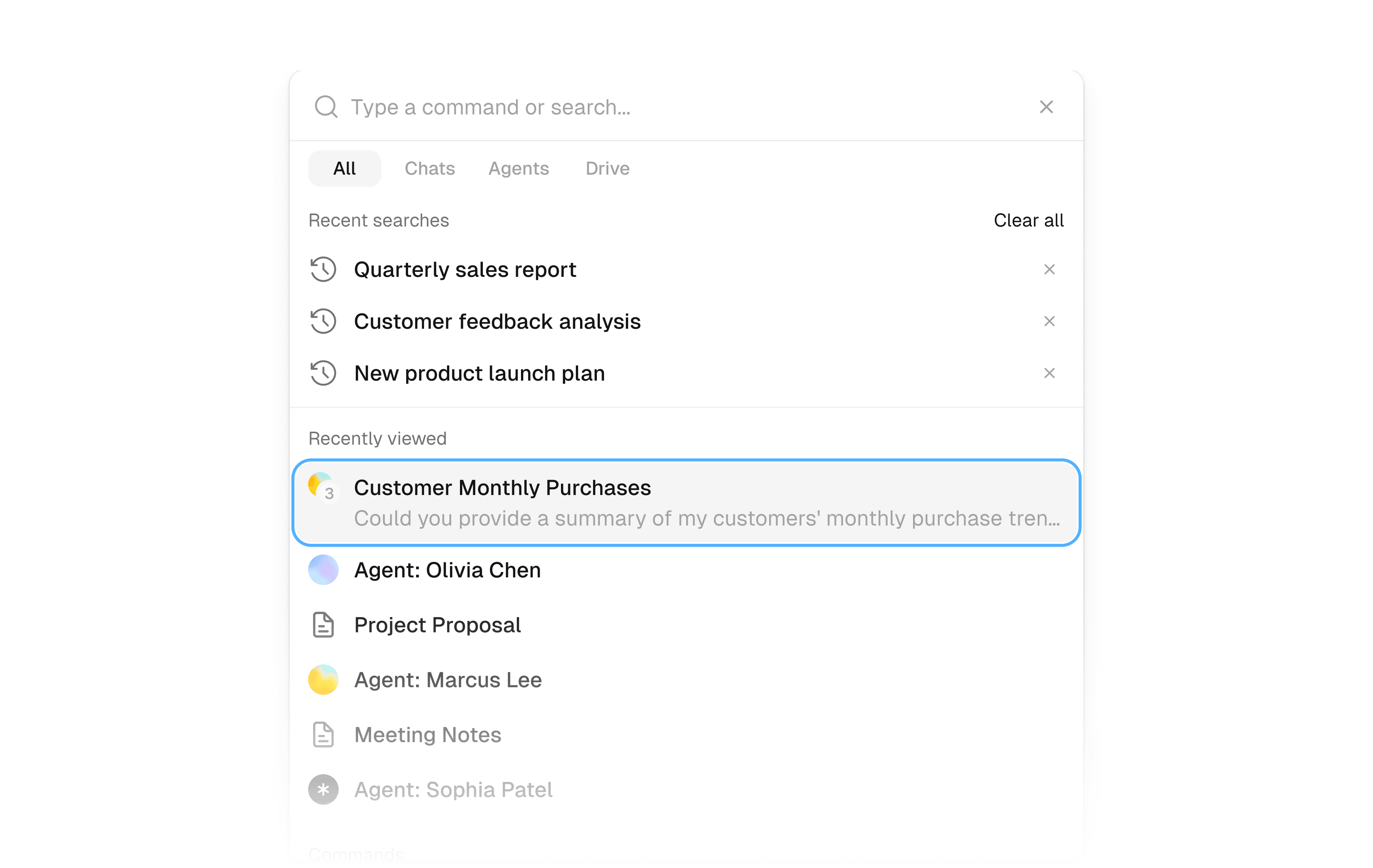
Tab through sections
PressTab to cycle through Scout’s main areas. Each tab stop shows a preview of that section’s content — including recent agents, workflows, chat history, and more — so you can orient yourself before navigating.

What you can reach
Search gives you quick access to every major area of Scout Studio:Keyboard reference
Tips
- Use it to switch between agents quickly during testing without losing your place.
- Section tab-through is useful when you know the area but not the exact item name.
What’s Next
Core Concepts
Understand agents, instructions, collections, workflows, and the other building blocks of Scout.
Agents Overview
Go deeper on building intelligent agents that adapt and take action.