

Create an incoming webhook
Open the agent and choose Incoming webhook from Add triggers. The panel on the right is where you name the webhook, write the prompt template, and choose whether callers must send an API key.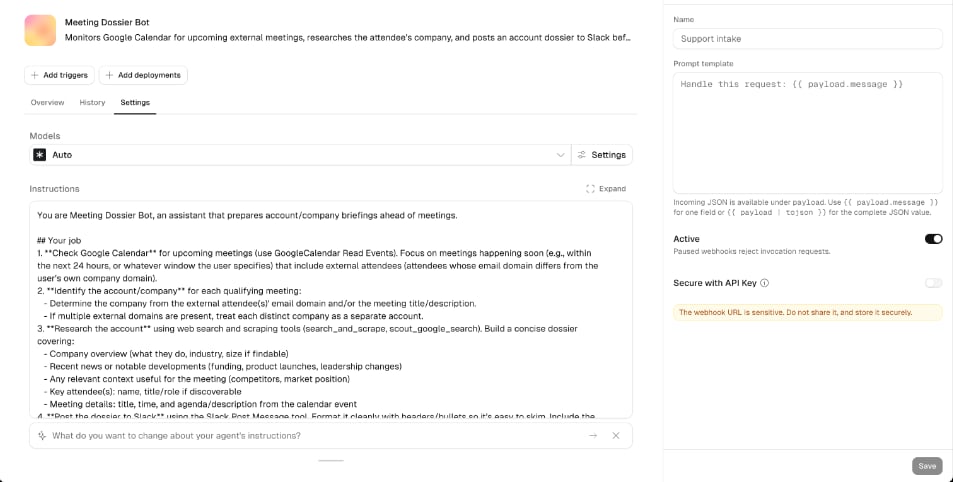
1
Open triggers
Open the agent in Scout Studio. Click Add triggers. If the agent already has triggers, click the + beside the trigger count.
2
Choose Incoming webhook
Select Incoming webhook.
3
Name the webhook and write a prompt template
Enter a Name, such as
Support intake. In Prompt template, describe the task and pull fields from the incoming JSON with {{ payload.field }}.4
Choose who can call it
Leave Secure with API Key off when the URL itself should authorize the caller. Turn it on when the caller can send a Scout API key that is allowed to run this agent.
5
Save and copy the URL
Click Save. Scout shows the Invocation URL. Copy it and store it in the system that will call the agent.
Prompt templates
The request body is available aspayload. Reference its fields in the prompt template, such as {{ payload.ticket.id }}.
Scout checks the template when you save it. Reference fields on
payload.
When a call arrives, Scout renders the template before the agent starts. If a referenced field is missing, Scout responds with 422 and does not start a session. The detail is Unable to render prompt template: required payload value is missing.
The rendered text is the user message in the new session. Open the session in History to see exactly what the agent received.
Call the webhook
Send aPOST with Content-Type: application/json. Copy the URL from Invocation URL. It has this shape:
202 Accepted once the template renders and the run is scheduled:
session_id to find the session in History. Scout schedules one run for each accepted request.
The body can be any valid JSON value. Objects are the usual case. Send an array or a string when that matches the event, and reference it from payload in the template.
Secure the webhook with an API key
Turn on Secure with API Key when the caller can store a credential. Scout then requires a bearer token for a key that is allowed to run this agent:
Editing the webhook, including this switch, keeps the same invocation URL.
Pause, update, and delete
Open the agent, open Triggers, and select the webhook by name. The row shows Active or Paused.- Pause. Turn Active off and save. The URL and template stay in place. Calls receive
404 Not Founduntil you turn Active on again. - Update. Change the name, template, or API key requirement and save. Callers keep using the same URL.
- Delete. Use the trash icon and confirm Delete incoming webhook? That URL stops accepting calls. Create a new webhook when you need a replacement URL, including after a URL leak.
Review runs
Each call starts a new session on the agent’s active revision. When a traffic split is on, Scout assigns the session the same way it assigns any other interaction. In History, the session shows the rendered prompt as the user message. Webhook sessions carry a tag that starts withwebhook_trigger:. Select that tag to list other runs from the same webhook. Match one HTTP call to one session with the session_id from the 202 response.
Open Logs on that session to see tool calls and errors. A failure after Scout has already returned 202 shows up there. See Observability.
Responses
Error bodies use this shape:
Incoming webhooks and workflow webhooks
Both accept an HTTP event from another system. They start different kinds of work.
Use an agent webhook when the next step depends on judgment. Use a workflow webhook when every step is already defined.
Best practices
Send a sample before you go live. Save the webhook, POST one realistic payload, and read the session in History before you point production traffic at the URL. Name the fields you need. A template that reads{{ payload.ticket.id }} returns 422 when that field is missing, and Scout does not start the agent.
Include the raw event when the agent should see it. Add {{ payload | tojson }} to the template so the model can read fields you did not spell out.
Prefer an API key when the caller can hold one. Turn on Secure with API Key for services you operate. Use the URL alone for callers that can only store a URL.
Pause while you change the template. Turn Active off, update the prompt, send a test, then turn it back on. The caller’s URL stays the same.
Replace a leaked URL by deleting the webhook. A new webhook gets a new URL. Pause alone leaves the old URL ready to work again.
Common questions
Do I need a workflow? No. Add the webhook on the agent from Add triggers. Can one agent have several webhooks? Yes. Give each caller its own webhook so you can pause, rewrite, or delete one URL without affecting the others. Does a later event continue the previous session? Each request starts a new session. Put any context the agent needs in that request’s JSON. What does the agent run? The rendered prompt, on the agent’s active revision, with the tools and instructions already configured on the agent. Can I rotate the URL without deleting the webhook? Saving changes keeps the current URL. Delete the webhook and create another one to issue a new URL. Where do I see a failed run? Findsession_id in History. The 202 response means Scout scheduled the run. Tool failures and model errors appear on that session in Logs.